
Over the past years, I’ve been learning and writing about AI.
One thing I noticed is that we often waste time and energy chasing the latest AI news and trying tools that we’ll never actually use—instead of focusing on mastering what’s already available. While learning new things is always valuable, our time is limited, so it’s best to invest it in something that will truly make a difference.
Here are three things I learned about AI that save me many hours every week.
#1 Create, reuse, and manage prompts efficiently
Just like we use English to speak with another person, we use prompts to talk to AI. People usually struggle with prompts because they:
-
Try to use all the elements of a good prompt—or use none of them
-
Don’t reuse or manage their prompts (saves a lot of time in the long run)
A good prompt has the elements below, BUT we rarely need to include all of them. Most of the time, we’ll only need to include the task and context in our prompt. Also, as ChatGPT gets updated, adding some elements becomes less necessary.
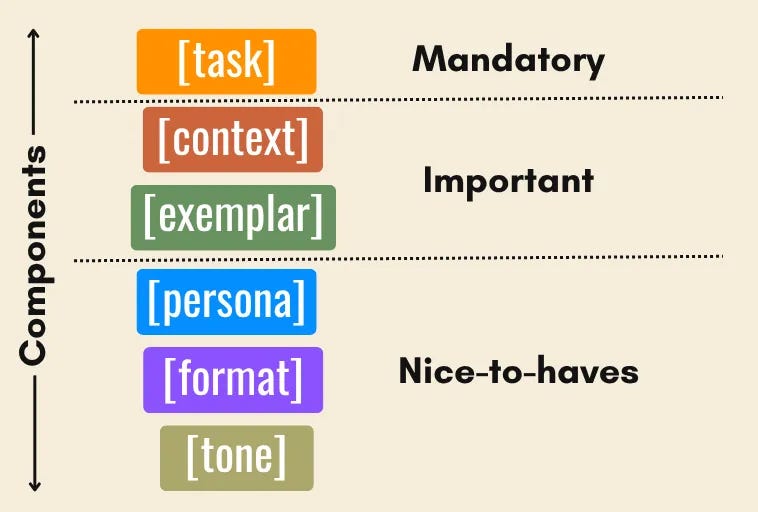
Here’s a prompt example that only has task and context:
I’m a 75kg man who wants to gain 5kg of muscle in 1 year. Build a 1-year training program to follow. I don’t have previous experience and I can train 4–5 days per week (60–75 min per session)
Here’s why you don’t need the other elements:
-
Examplar: When we’re unfamiliar with a topic, we rarely have a good exemplar to show ChatGPT to generate a better response
-
Persona: Adding the “you’re an expert in … “ in persona isn’t that necessary in newer versions of ChatGPT (you could add some extra details, though)
-
Tone/Format: They’re nice-to-have elements, but they won’t drastically improve the response you get
Don’t get me wrong—I do create more robust prompts that include the elements mentioned above. In fact, many of them are stored in a prompt database that I frequently reuse (more on that later). I typically create these detailed prompts for tasks and projects that require high precision. While I don’t create them every day, whenever I do, I make sure to save them for future use.
For example, if you’re a personal trainer, you’ll need a more robust prompt that you can use with different clients. In this case, you could add an exemplar, persona, format, and tone as shown below.
Task: Build a 1-year training program for a client
Context:
[x]kg [man/woman] who wants to gain [5]kg of muscle in 1 year
Can train [x] days per week
[x years] of experience
Exemplar:
<You attach a workout planner template as a reference for the 1-year training program>
Persona:
You’re a bodybuilding coach with 10+ years of experience preparing recreational lifters for physique goals. You stay evidence-based, cite key references where relevant, and individualize programs.
Format:
<More details of the table output for the 1-year training program>
Tone:
Think of motivating and knowledgeable coach who is encouraging yet direct.
To sum up, always include the task and context, and reserve the other elements for work that requires detailed explanation and precision in the response.
This last robust prompt is a good example of a template that can be saved in a database and reused later with new clients. An easy way to reuse and manage prompt templates is with text expanders.
Mac users have a built-in Text Replacement feature that can help with this. Just go to Apple menu → System Settings → Keyboard → Text Replacement (in text input). The window below will pop up. Click the + button to add a new prompt shortcut.

After that, every time you write !prompt, you’ll get your prompt template.
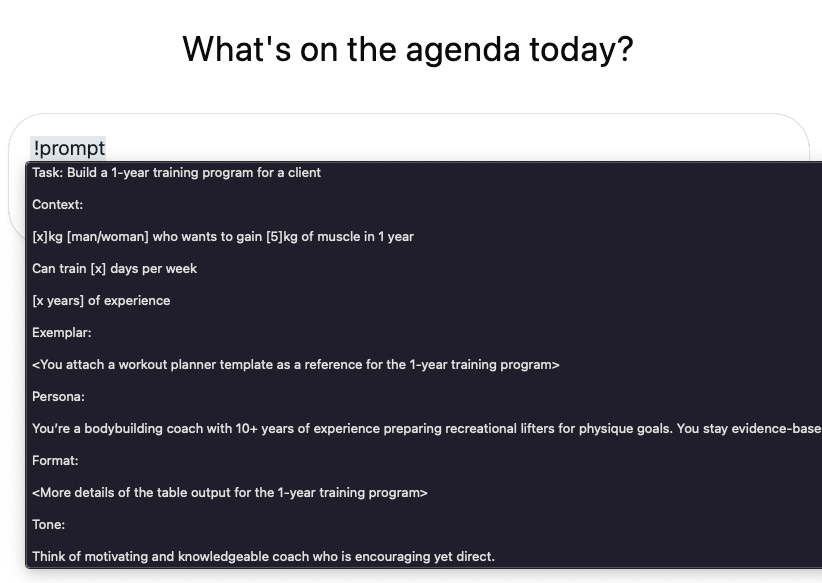
This built-in Mac feature is a good start, but as you add more prompts, your list becomes messy and there’s no easy way to manage them on your Mac.
There are more powerful apps that can help you manage your text expanders, such as TextExpander (Windows/macOS), Beeftext (Windows), and Alfred (macOS).
This article is exclusive to paid subscribers (see extra perks here). To continue reading, please consider becoming a paid subscriber 👇