Hi!
I wrote today’s post in collaboration with . Ilia writes Prosper, a newsletter focused on practical AI workflows, systems, and frameworks for professionals who want to use AI more thoughtfully.
If you’re interested in building systems for working with AI, I highly recommend checking out Prosper.
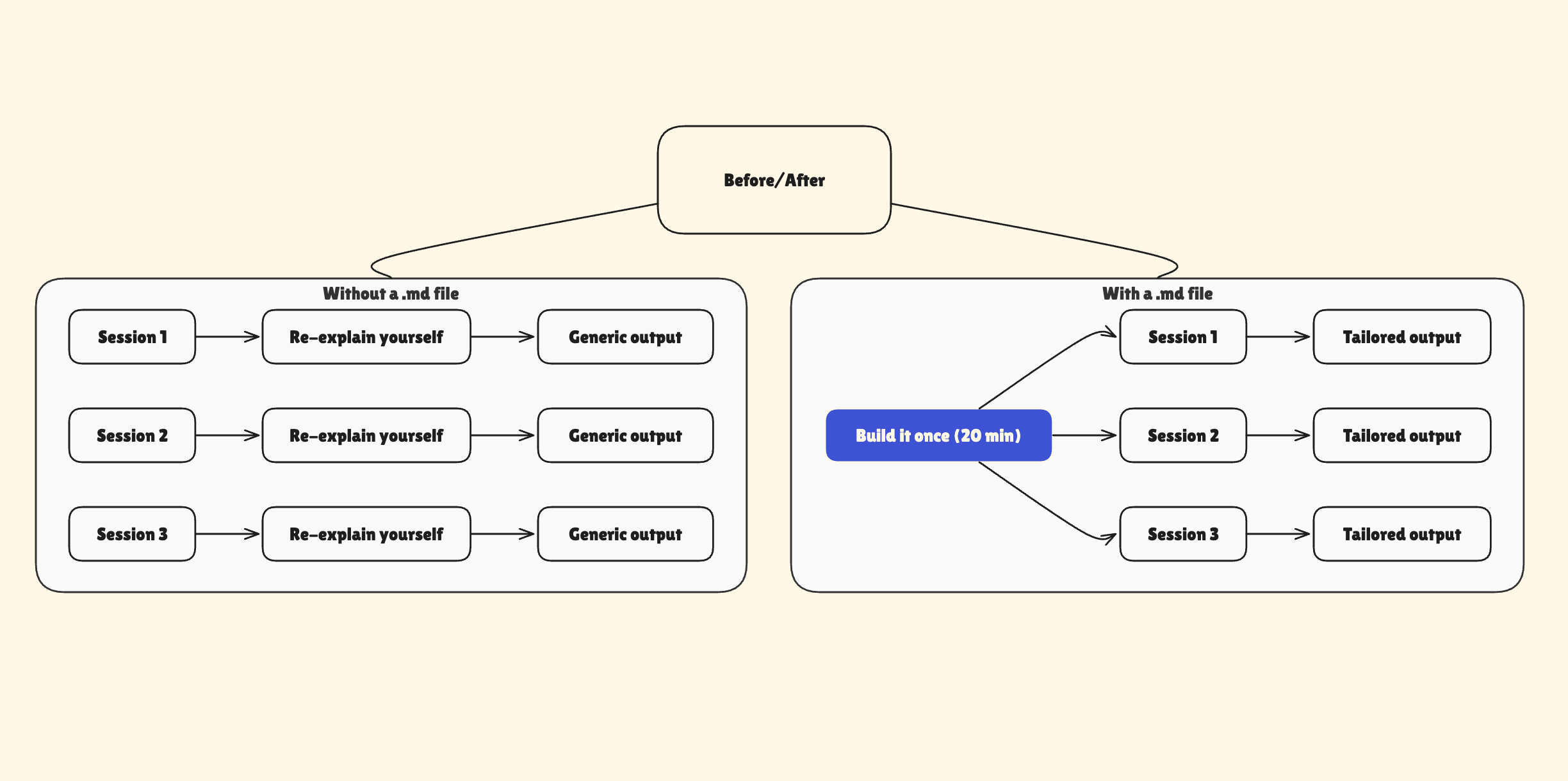
Picture this: you need help with your business, so you open Claude (or any other AI) and start the same way: “Hey, quick context: here is what my business does, this is what I need help with today … ”
Claude helps you out. But then the next time comes, and you’re doing it all over again: rewriting context, re-explaining your situation, updating what was discussed last time.
Every. Single. Time.
That used to take up a lot of my time until I started using .md files. Once I did, I stopped re-explaining myself from scratch.
An .md file is a simple text file that holds context about you, your work, or your projects. You create it once. You reuse it everywhere.
In this guide, you’ll learn:
-
How to create your own .md file
-
5 interview-style prompts that generate ready-to-use .md files for business context, writing voice, project work, content creation, and analysis
-
How to use your .md file in Cowork
You can upload .md files to Claude, ChatGPT, or any other AI, but I recommend using it on Claude Cowork. In the next section, we’ll see why.
Click here to get my FREE Claude course (20+ lessons)
Cowork makes .md files more powerful
In regular Claude chat, you paste a .md file into the conversation. Works fine, but you do it every time.
Cowork is different.
Drop a .md file into a folder and Claude reads it automatically whenever you work in that folder. Open the folder, Claude already knows the context. No pasting. No re-uploading.
Here’s what that looks like in practice.
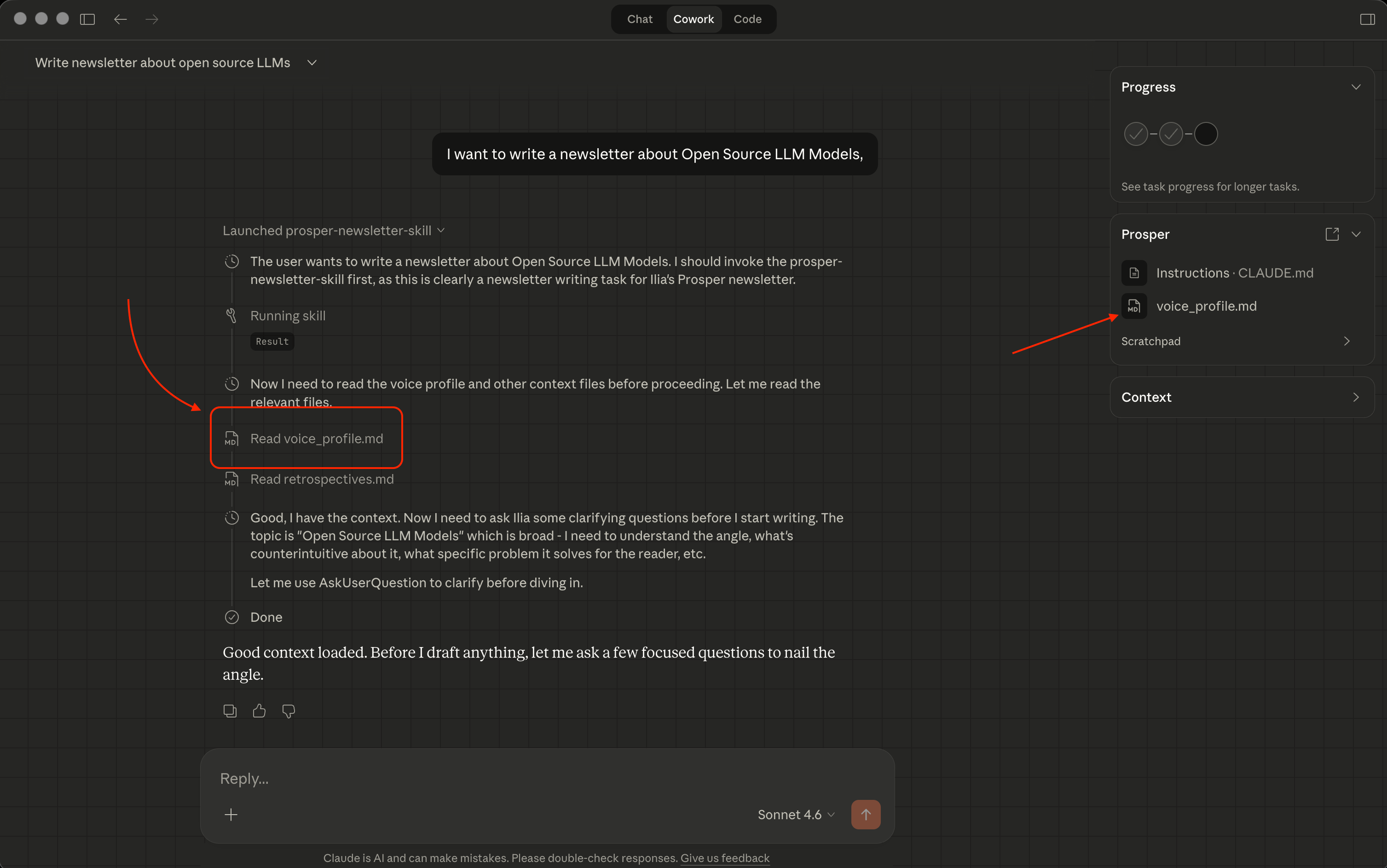
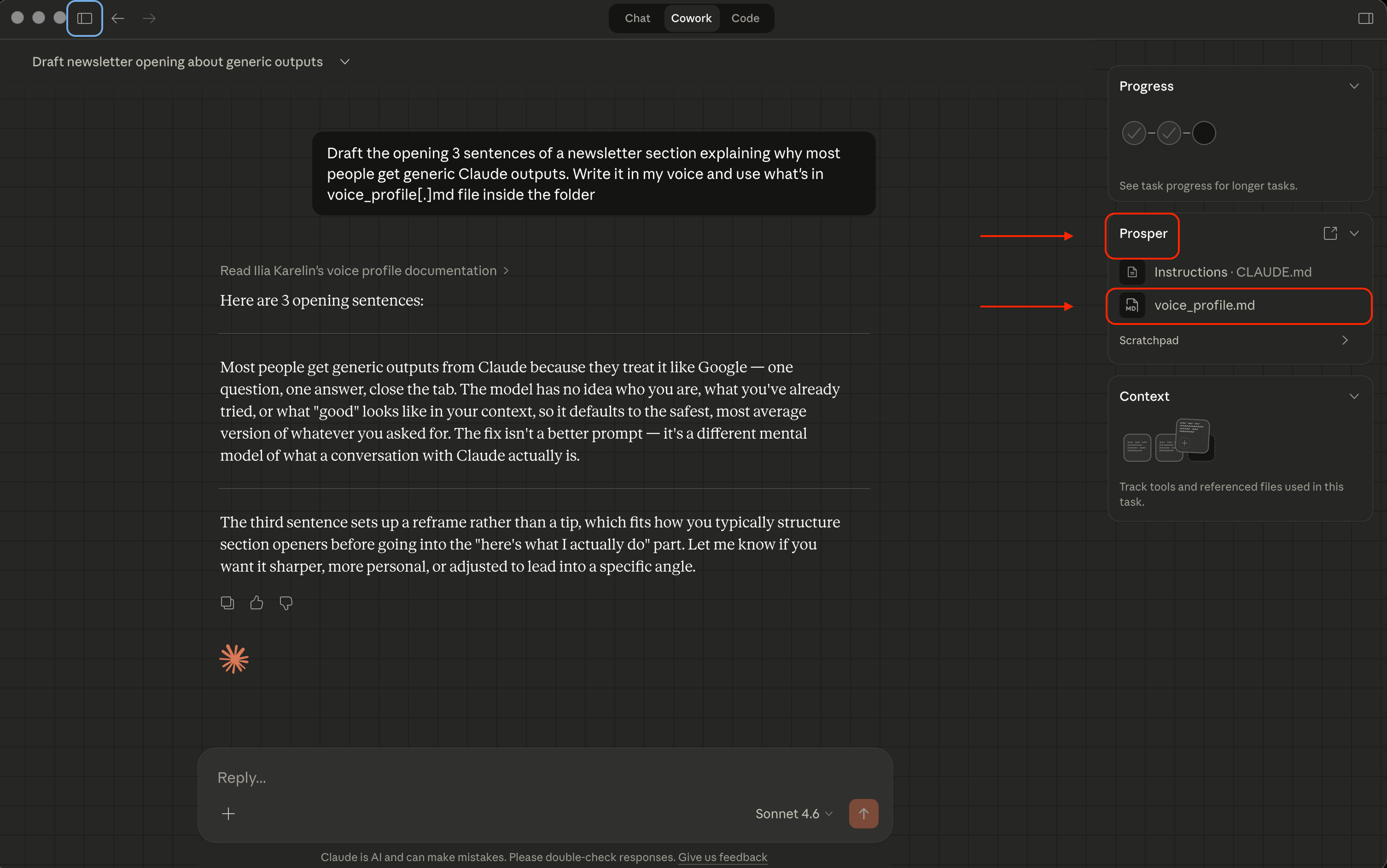
Ilia writes a newsletter called Prosper. His writing folder contains a voice profile with banned words, sentence patterns he avoids, positions he’d never take.

“When I open that folder in Cowork and ask for a draft, it doesn’t ask who I am. It reads the file and produces something that sounds like I wrote it on a Tuesday morning”
– Ilia Karelin
Same principle, any folder. Your client folder knows your delivery standards. Your research folder knows how you think about data.
Zero re-explaining. Claude starts already knowing your work.
Here’s how to use Cowork:
-
Download Claude for desktop
-
Open the app and choose “Cowork“
-
Give access to the folder containing the .md file
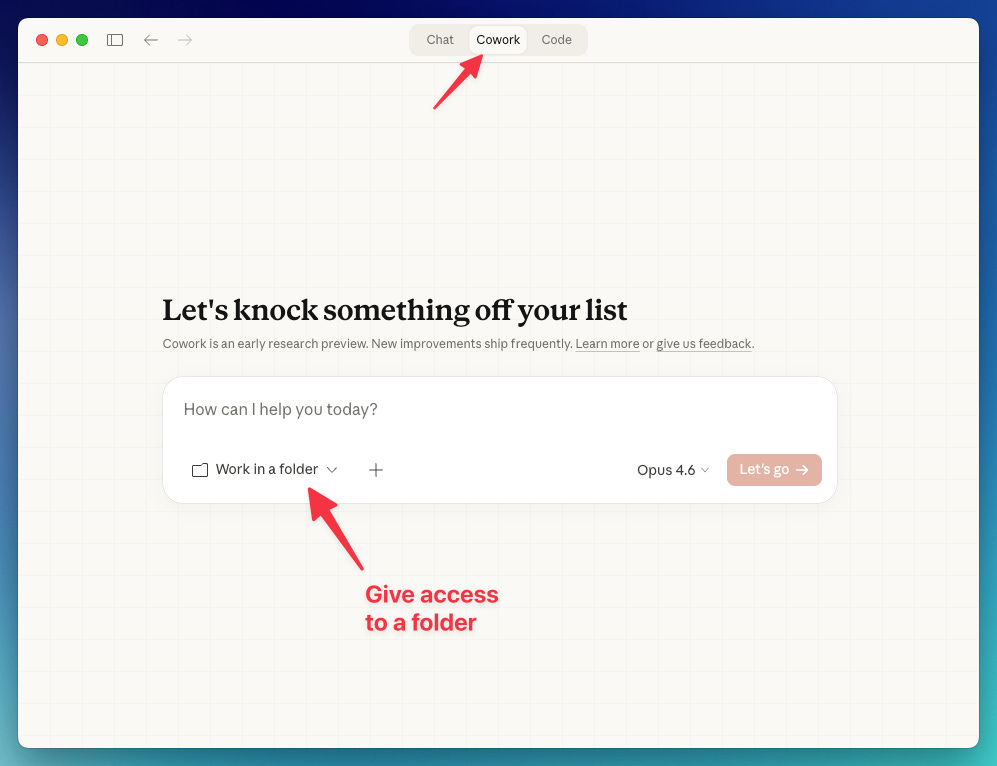
In the next section, we’ll learn how to create an .md file. Once you connect the file to Cowork, it’ll have it as a reference for future responses.
📚 Claude Cowork – Complete Guide: artificialcorner.com/p/cowork
📚 Move from ChatGPT to Claude: artificialcorner.com/p/switch-to-claude
📚 Best Claude Setup: artificialcorner.com/p/claude-setup
How to create your .md file: the interview method
You don’t sit down and write the file completely from scratch. Claude interviews you and builds it from your answers.
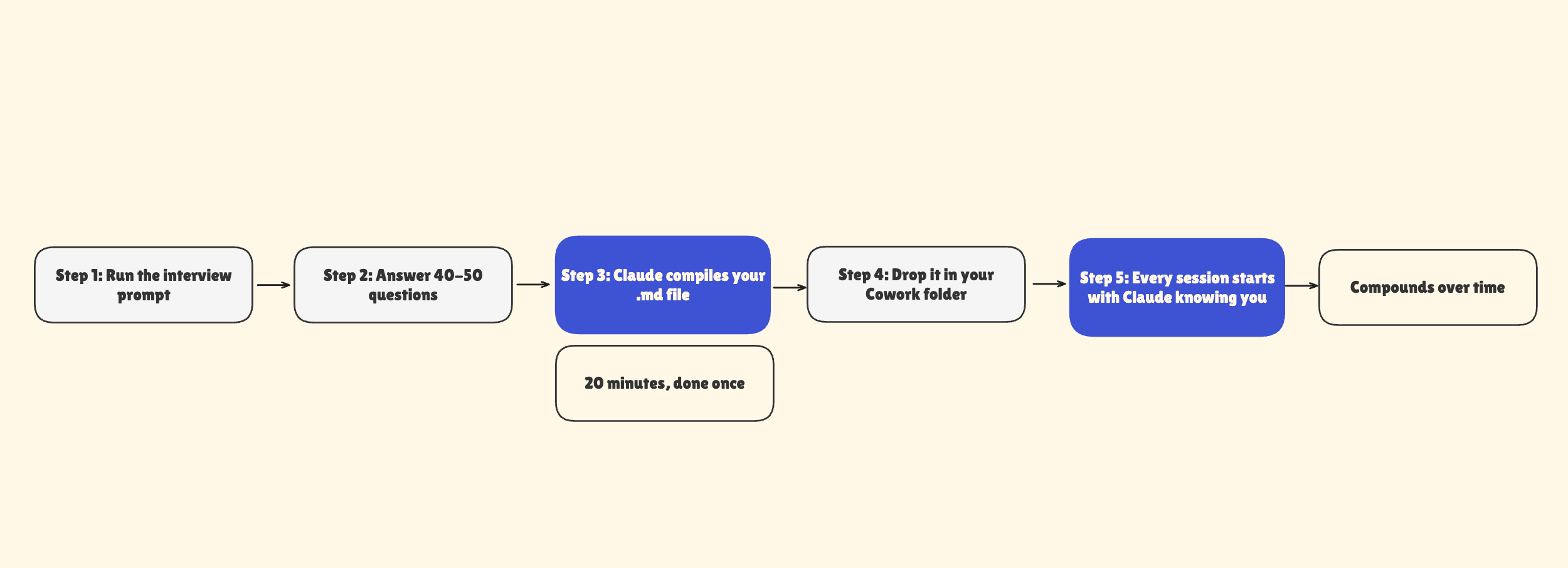
Instead of staring at a blank document trying to articulate how you work, you let Claude interview you, and we’re going to give it a starting point.
It asks the questions. You answer honestly. At the end, it hands you a finished file.
The insight that makes this work: your profile is mostly about what you “reject”, not what you prefer. What you never want to see. What you’d never say.
That’s where the real signal is – not “I like direct communication” but “I’d never send a bullet-pointed email to a client.”
Here’s the base prompt:
You are going to help me create a context file I can use with Claude Cowork.

Ask me questions one at a time to understand my work: who I am, what I do,
how I like things done, what I never want to see in outputs, and what
“good work” means to me specifically. Use AskUserQuestion for it.

Ask me 40-50 questions total. One at a time. Push back if my answer is
vague — ask for a specific example. When we’re done, compile everything
into a .md file I can save and use with Claude.
Claude takes it from there.
Note: For the examples below, I told Claude to ask me 3 questions and then compile a first draft of the file. In practice, 40-50 questions produce a much richer profile — but this is a good way to see what you’re building toward before committing to the full interview. You can always run it again or ask Claude to update the file with more details later.
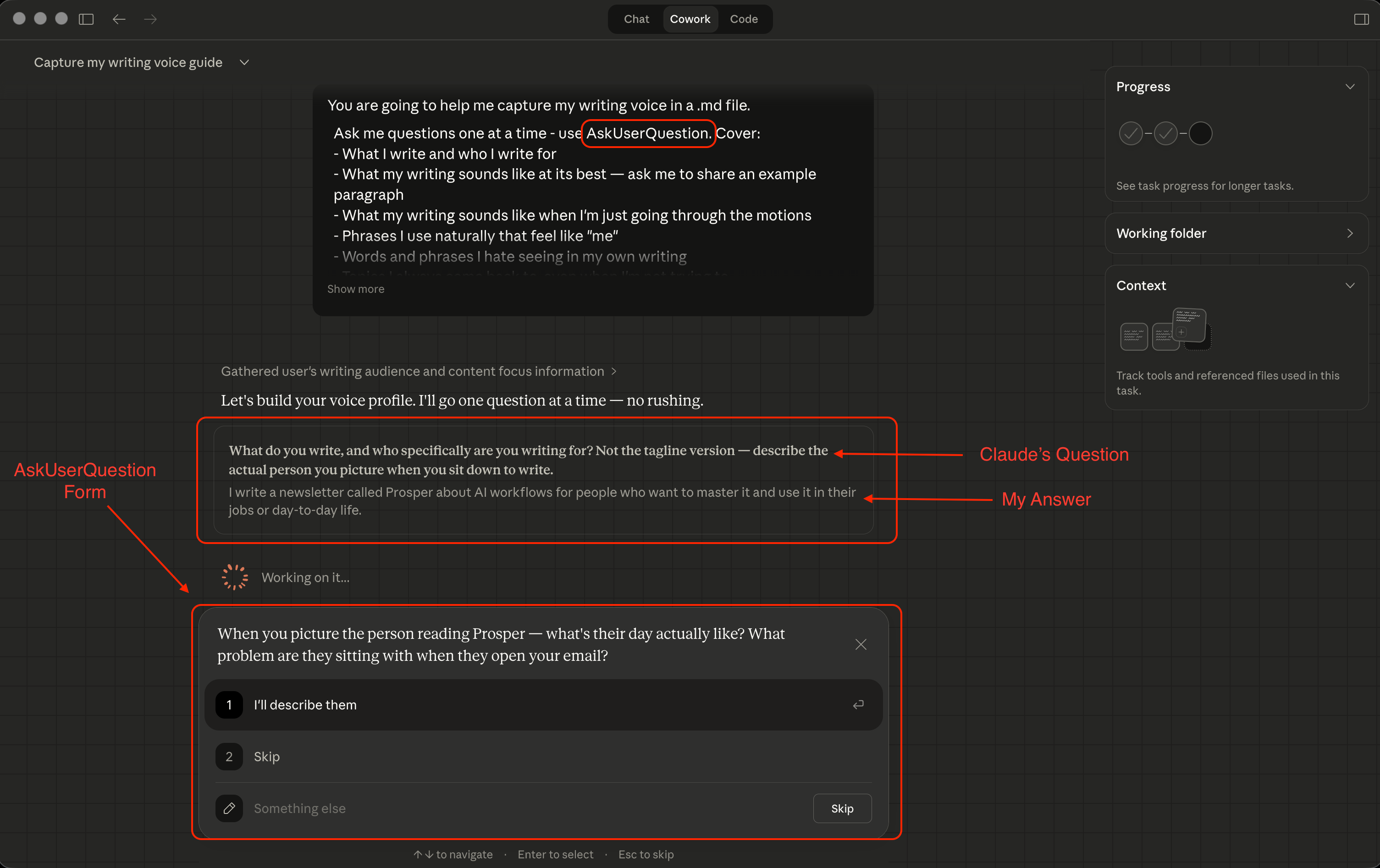
The key is answering specifically. “I want professional outputs” is useless. “I want outputs that sound like they came from a CFO – direct, numbers-first, no filler” gives Claude something it can actually apply.
In the previous prompt, we used AskUserQuestion to collect your preferences through preset options, but short multiple-choice answers only scratch the surface. Claude works best when it has rich, detailed context about you
For a more tailored experience, choose one of the five role-specific prompts below and answer as thoroughly as you can. The more detailed and thoughtful your responses, the more context Claude will have to work with.
📚 Claude – The Setup Most People Never Do