I’ve been playing with Claude Cowork since day one.
It’s an amazing tool for automating tedious computer tasks!
I’ve been wanting to share this guide for a while now, but Cowork was macOS-only. No point publishing a guide that half of you can’t use.
Today, it was just released for Windows. So here we go!
Here’s what makes Claude Cowork different from other tools:
-
It has direct access to your local files (no manual file uploads!)
-
Takes on multi-step tasks and executes them autonomously
-
Creates professional deliverables (Excel, PowerPoint, Word docs)
-
You can add plugins for specialized work (sales, legal, finance, productivity)
Working with ChatGPT is like being stuck in a chat bubble. There’s a lot of back and forth because it has no context about what you’re trying to do.
Claude Cowork is different.
Its context is the folder and files you give it access to.
You point to a folder & give it a task → Cowork plans the steps & executes on its own
By the end of this article, you’ll learn:
-
How to use Claude Cowork
-
How to save hours with Cowork (ChatGPT can’t do this)
-
How to make Cowork even more powerful with plugins and connectors
Subscribe to get my FREE Claude course.
20+ lessons delivered straight to your inbox 👇
How to use Claude Cowork
Just download Claude for desktop, install it, and open the app.
At the top, you’ll see 3 options: Chat, Cowork, Code. Choose Cowork.
Note: You might have to turn on Developer Mode on Windows to install and use Cowork: Settings → Update & Security → For developers → Developer Mode
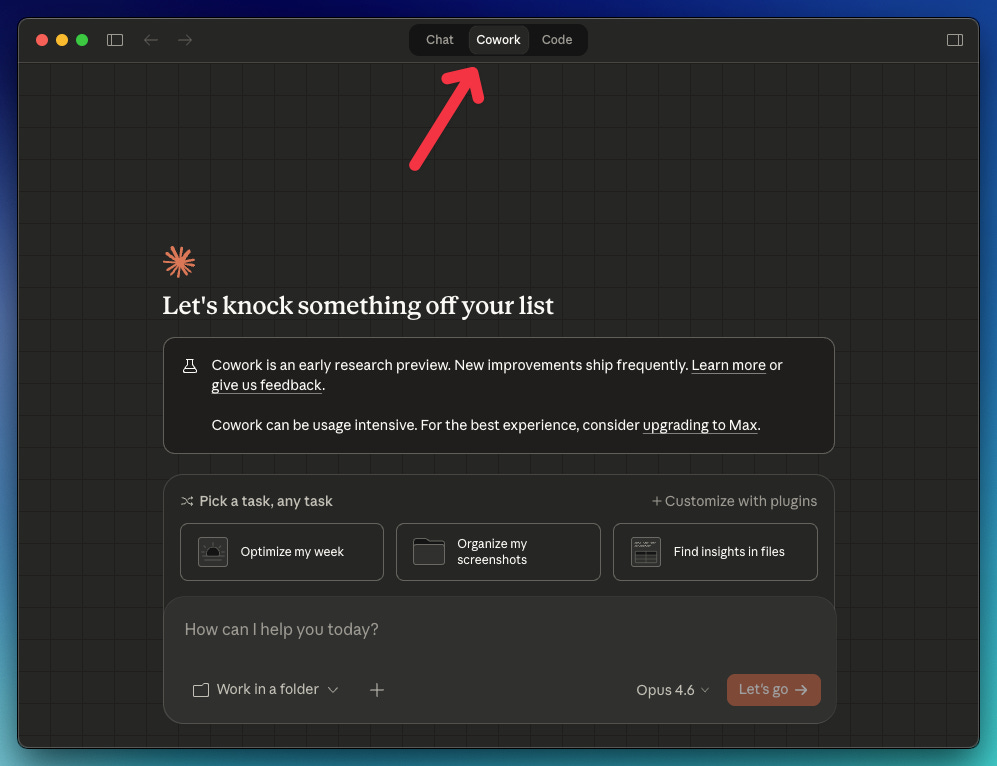
At first look, Claude Cowork looks like the ChatGPT app, but it’s not. Here’s a quick overview of the Cowork interface:
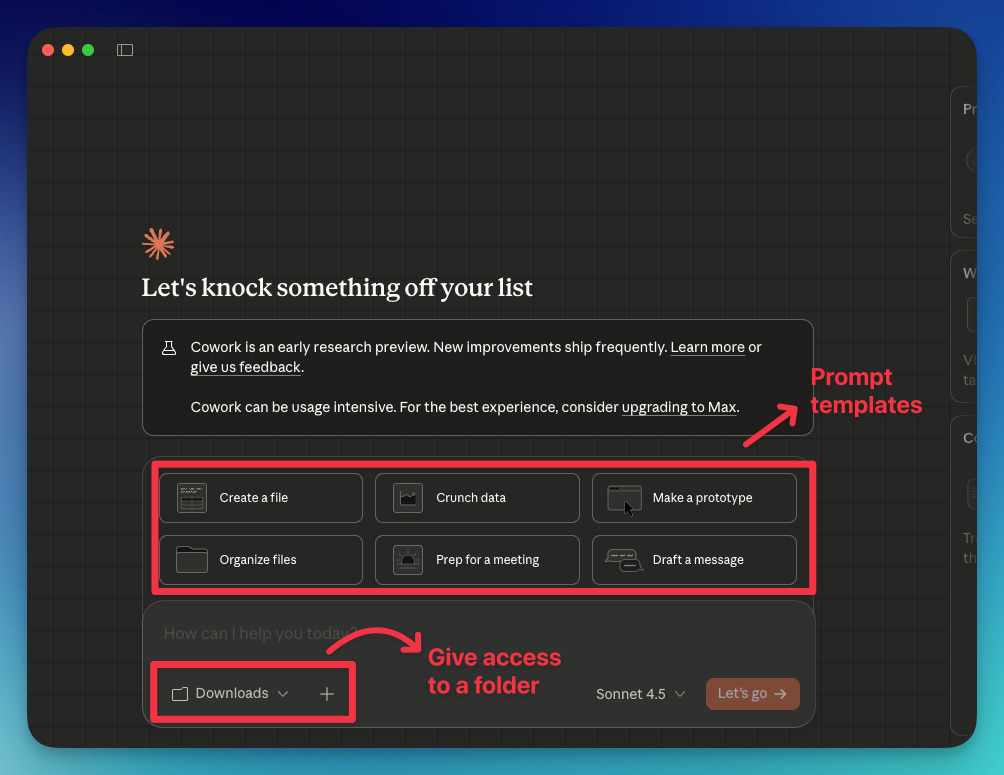
In addition to that, inside the + icon, you’ll find connectors and plugins that make Cowork even more powerful (we’ll review them a bit later).
Let’s see some things you can do with Cowork
Note: If you’re working with important files, back up first. Just like any other AI, Claude Cowork can make mistakes.
How to save hours with Cowork (ChatGPT can’t do this)
#1 It can organize your messy desktop
Click on Organize files (from the prompt templates) and select a folder.
You’ll get a prompt like this:
Help me organize my Downloads folder. Scan the contents and propose a plan:
Categories/folders to create
How files should be sorted
Any naming conventions to apply
Files to flag for review or deletion
Show me the plan before making changes. Only proceed after I approve.
After approving the plan, my downloads folder was quickly organized.
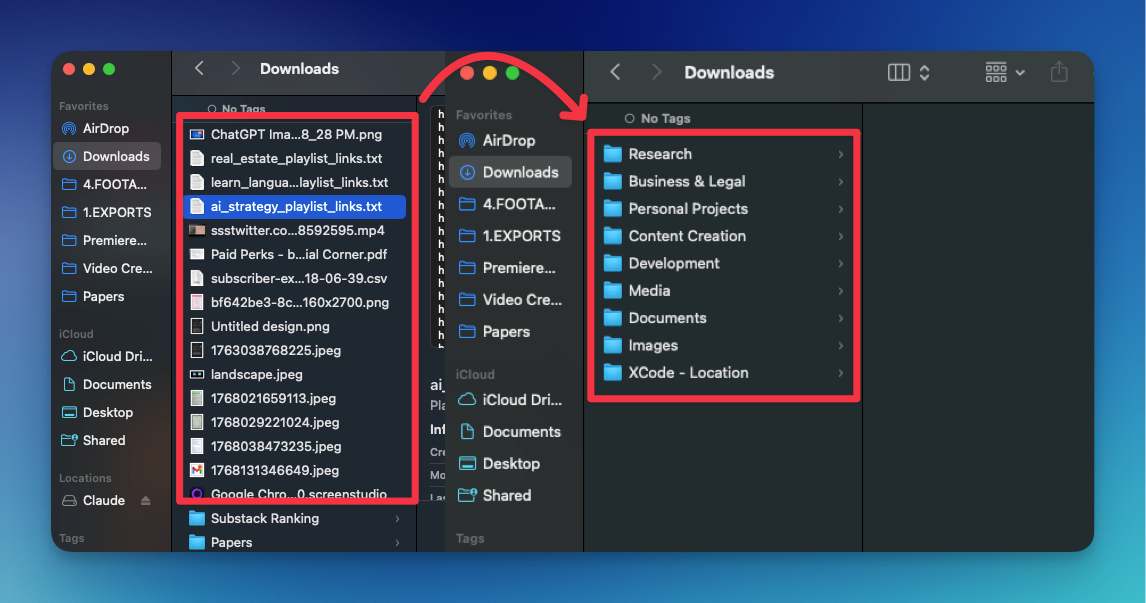
Here’s a video demo
You can also type your own prompt. For example, you can rename all your screenshots using this prompt:
Rename all the screenshots in my desktop based on what they are
#2 It can classify hundreds of video files
Next time you come back from vacation, you won’t have to manually organize your video files. Just ask Claude Cowork to do it for you
With the prompt below, you can classify video files by location and orientation (horizontal, vertical).
I’ll give you access to a folder with hundreds of videos taken at [place].
First, separate files by location. One folder for each location. Then, inside of each folder, create a subfolder separating horizontal videos and vertical videos. Finally, rename the files based on the [location] they were taken.
Please confirm what you’re going to do before doing it.
Here’s an example of Cowork organizing video files recorded at Disney World.
#3 It can turn months of receipts into a categorized spreadsheet
Organize my receipts based on the type of expense
Claude Cowork will ask how you want to organize the receipts. You can choose “move into folder,“ create a spreadsheet or both!
How to make Cowork even more powerful
Plugins and connectors unlock a whole new world of possibilities in Claude Cowork
How to work with plugins
So far, we’ve seen that Cowork is very powerful.
Plugins make it even more powerful. They’re pre-built instruction sets that make Claude good at specific professional tasks like reviewing contracts, writing marketing copy, or doing financial analysis.
Think of them as “expert modes” for different industries.
Here’s how to install and use plugins:
Click on the + icon → Add plugins
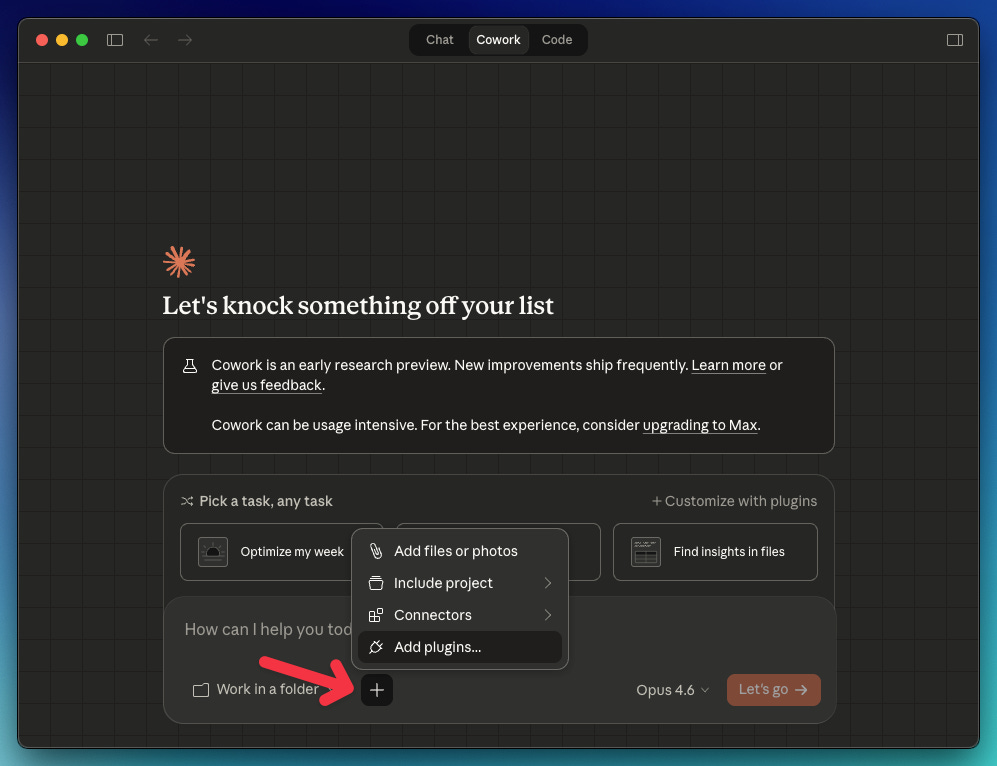
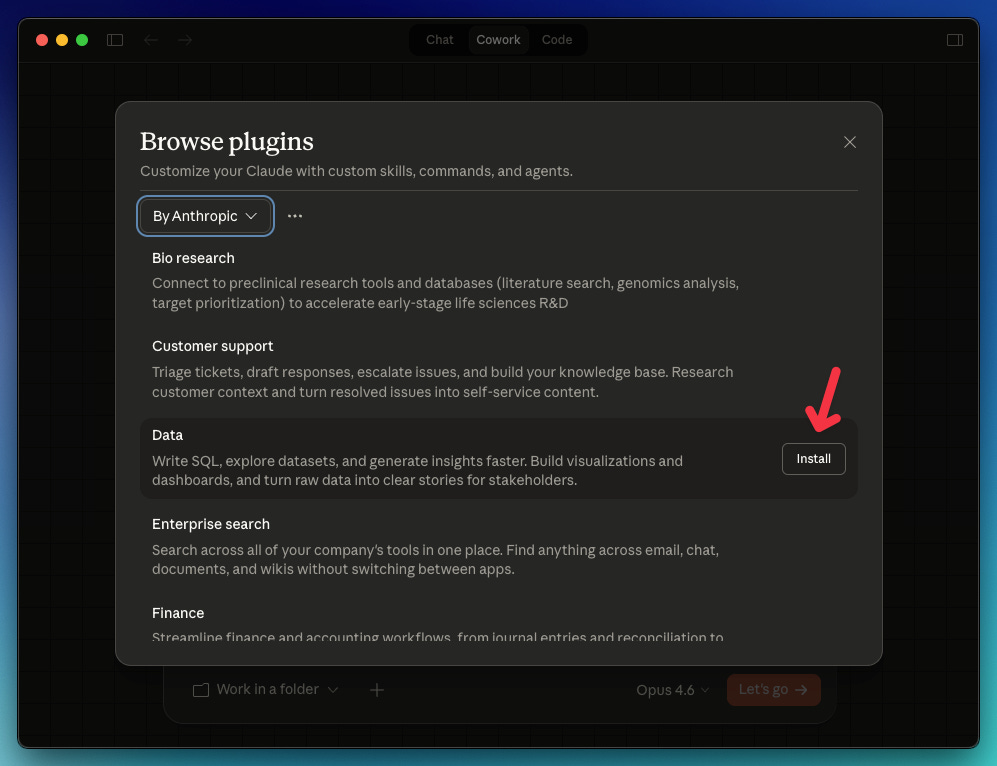
By default, you’ll see plugins by Anthropic, but you can also add external plugins. For this example, we’ll install the Data plugin by Anthropic.
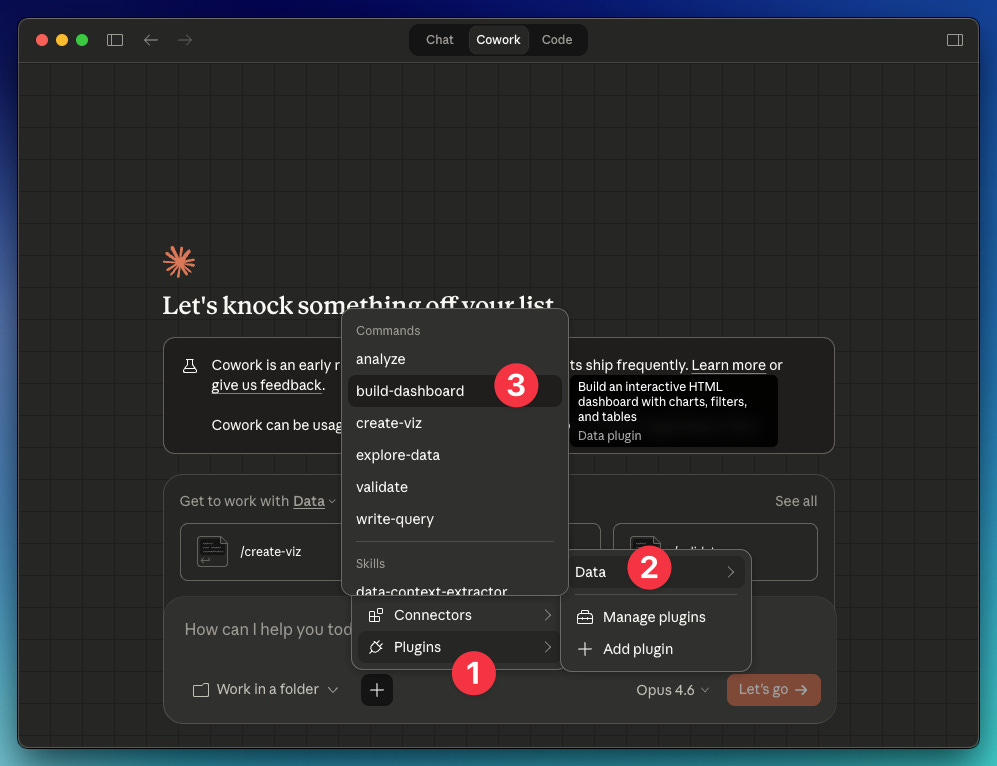
Next time you click on plugins, the “Data“ plugin we installed will be listed. Inside it, you’ll find the commands you can use.
For this example, we’ll use the command “build-dashboard,“ which builds an interactive HTML dashboard with charts, filters, and tables.
Let’s say you have a folder with multiple CSV files about your business expenses, revenue, and customer satisfaction.
Use the command “build-dashboard“ → point to your folder → copy the prompt below
Based on the files in this folder, show me how our marketing spend, revenue and customer satisfaction are trending. Interactive, dark theme.
How to work with connectors
Connectors let Claude interact directly with third-party tools like Google Drive, Gmail, Notion, and more to read data or perform actions.
Here’s how to install a connector.
Click on the + icon → Connectors → Manage connectors → Browse connectors
You’ll see dozens of connectors for the web and desktop. Select any of them and click install.
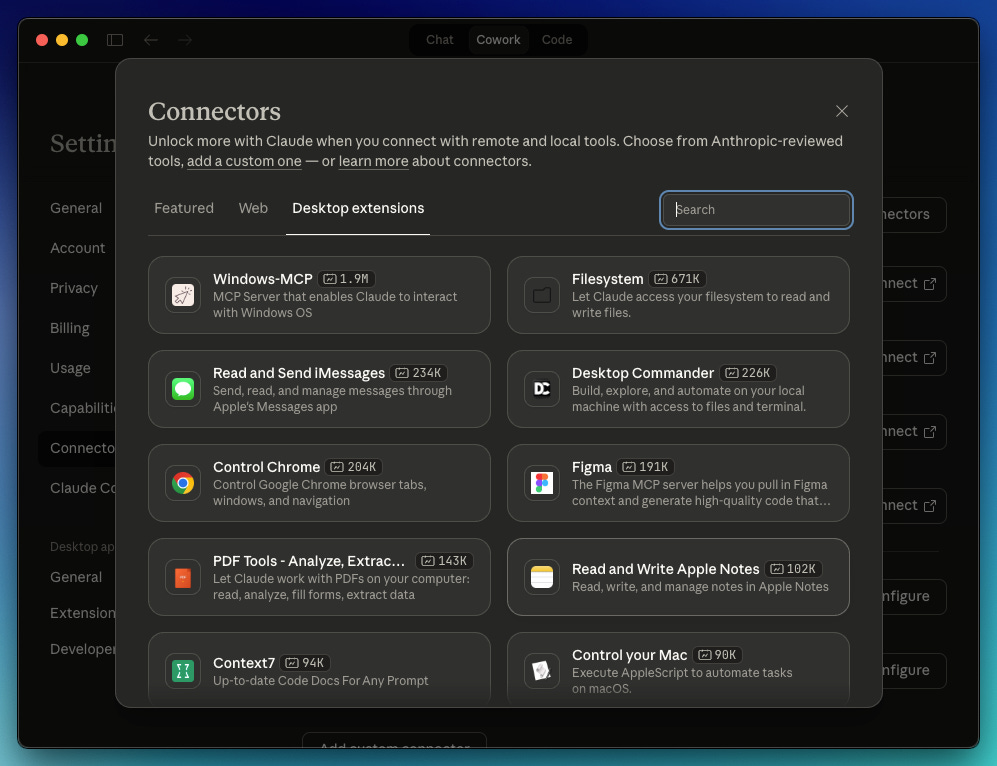
Next time you click on connectors, you’ll see the connector you installed in the list.
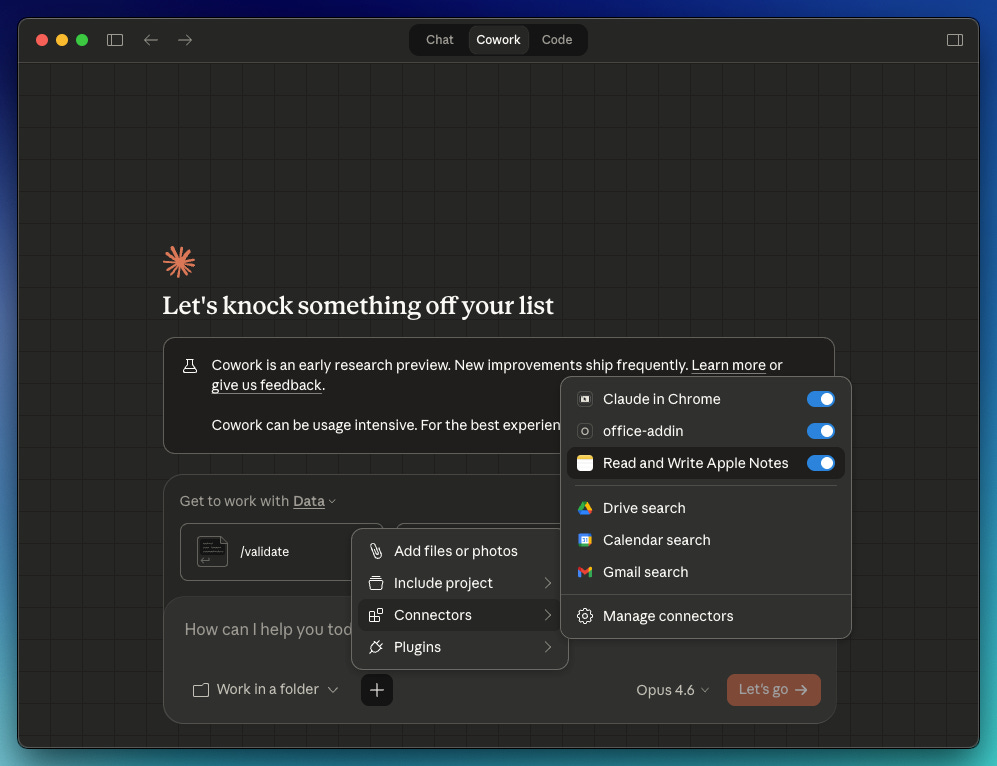
Make sure you read what each connector does before installing it. I installed the Read and Write Apple Notes connector, hoping it could help me organize my messy notes, but it turned out that it can only create, read, and update notes.
Important Notes
-
Back up your files before working with Claude Cowork
-
Make sure you review Claude’s plan before approving
-
Cowork consumes more tokens than a regular chat, so use it for complex work
-
Read all our Claude guides and become a paid subscriber to get full access to ALL our content (guides, videos, courses) 👇