You’ve been using ChatGPT for months or years, but you just realized Claude is better.
You know Claude is best at following instructions.
You want to try Claude’s skills and Cowork
But you have too much built up in ChatGPT to just walk away. You don’t want to lose all your chats, memory, custom instructions, etc, so it feels like you’re trapped.
In this guide, we’ll fix that.
In a few minutes, you’ll learn the best ways to move from ChatGPT to Claude:
-
Option #1: Transfer ChatGPT memory to Claude (with Anthropic’s prompt)
-
Option #2: Transfer ChatGPT projects, GPTs & custom instructions to Claude
-
Option #3: Transfer all your data from ChatGPT to Claude
Click here to get my FREE Claude course (20+ lessons)
Option #1: Transfer memory to Claude (Anthropic’s prompt)
Anthropic just released a method to transfer your preferences and context from other AI providers to Claude.
You only have to follow two steps.
Step 1: Copy Anthropic’s prompt below and paste it into ChatGPT
I’m moving to another service and need to export my data. List every memory you have stored about me, as well as any context you’ve learned about me from past conversations. Output everything in a single code block so I can easily copy it. Format each entry as: [date saved, if available] – memory content. Make sure to cover all of the following — preserve my words verbatim where possible: Instructions I’ve given you about how to respond (tone, format, style, ‘always do X’, ‘never do Y’). Personal details: name, location, job, family, interests. Projects, goals, and recurring topics. Tools, languages, and frameworks I use. Preferences and corrections I’ve made to your behavior. Any other stored context not covered above. Do not summarize, group, or omit any entries. After the code block, confirm whether that is the complete set or if any remain.
After a few seconds, you’ll get the information ChatGPT has been collecting about you in its memory across every chat you’ve had: who you are, what you do, what you like/dislike, and other preferences.
Step 2: Copy and paste the results into Claude’s memory settings.
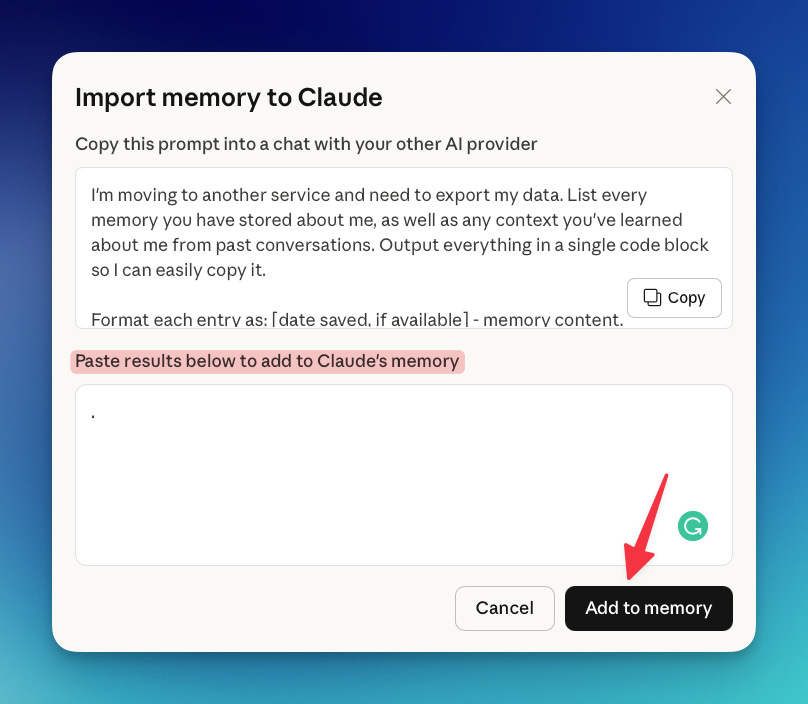
Done! Your ChatGPT memory has been transferred to Claude
But that’s only the memory!
If you have other important information in your custom instructions, projects, GPTs, and chats, options 2 and 3 will come in handy.
Option #2: Transfer GPTs, Projects & custom instructions
This is my favorite way to move from ChatGPT to Claude.
Why? Because most of us don’t need every single thing we’ve shared with ChatGPT. If you go with option #3, you’ll get a massive .zip file with all your ChatGPT data. There are workarounds to connect this file to Claude, but they come with some downsides:
-
ChatGPT might’ve saved inaccurate info about you in its memory
-
Both useful and useless chats will get exported (which might confuse Claude later)
For most users, transferring the following will be enough:
GPTs & Projects → Claude Projects
If you’ve created your own GPT or project and want to transfer it to Claude, there’s an easy way to do it: transfer its instructions to a Claude project
-
Go to your GPT or Project
-
Copy the GPT/Project instructions
-
Download the GPT/Project knowledge files
-
Go to Claude → Projects (left bar) → New Project
-
Paste the instructions and upload the files
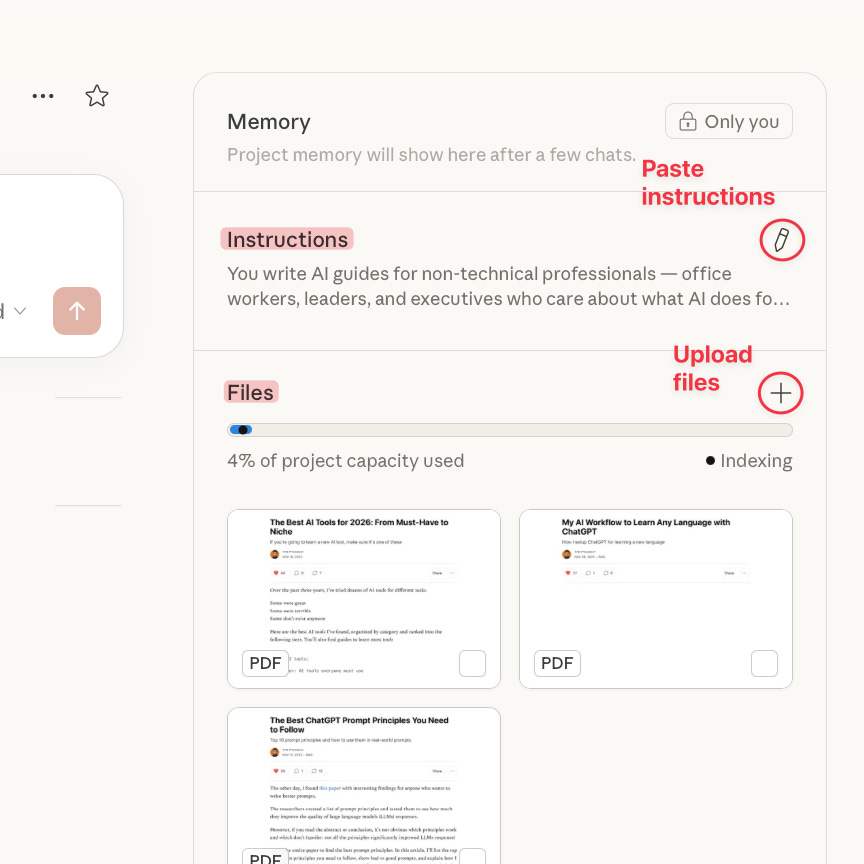
If you want to transfer your project’s memory, do this:
-
Go to your ChatGPT project
-
Use this prompt “Based on everything discussed in this project, create a comprehensive summary and context“
-
Copy the response
-
Go to your Claude project
-
Click on the + inside Files → Add text content → Paste the response → Click “Add content”
ChatGPT Memory / Custom Instructions → Claude Memory
You can quickly transfer ChatGPT’s memory and custom instructions to Claude. Here’s how.
-
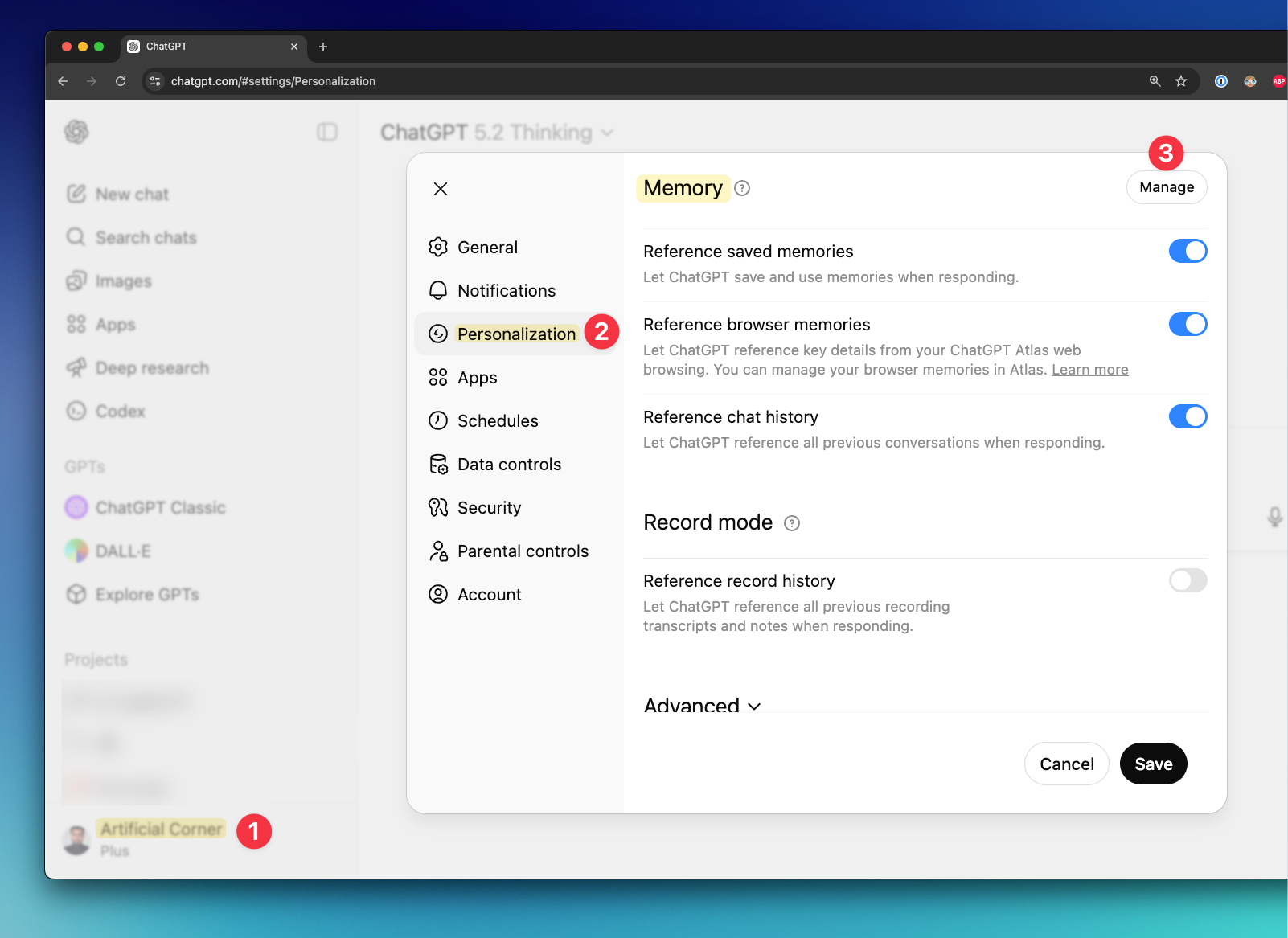
Click on ChatGPT settings
-
Go to Personalization
-
Scroll down to Memory → Manage (or Custom Instructions → copy text)
-
Copy your saved memories (tip: read the memory and verify that the info about you is accurate. If something doesn’t sound quite right, delete it)
-
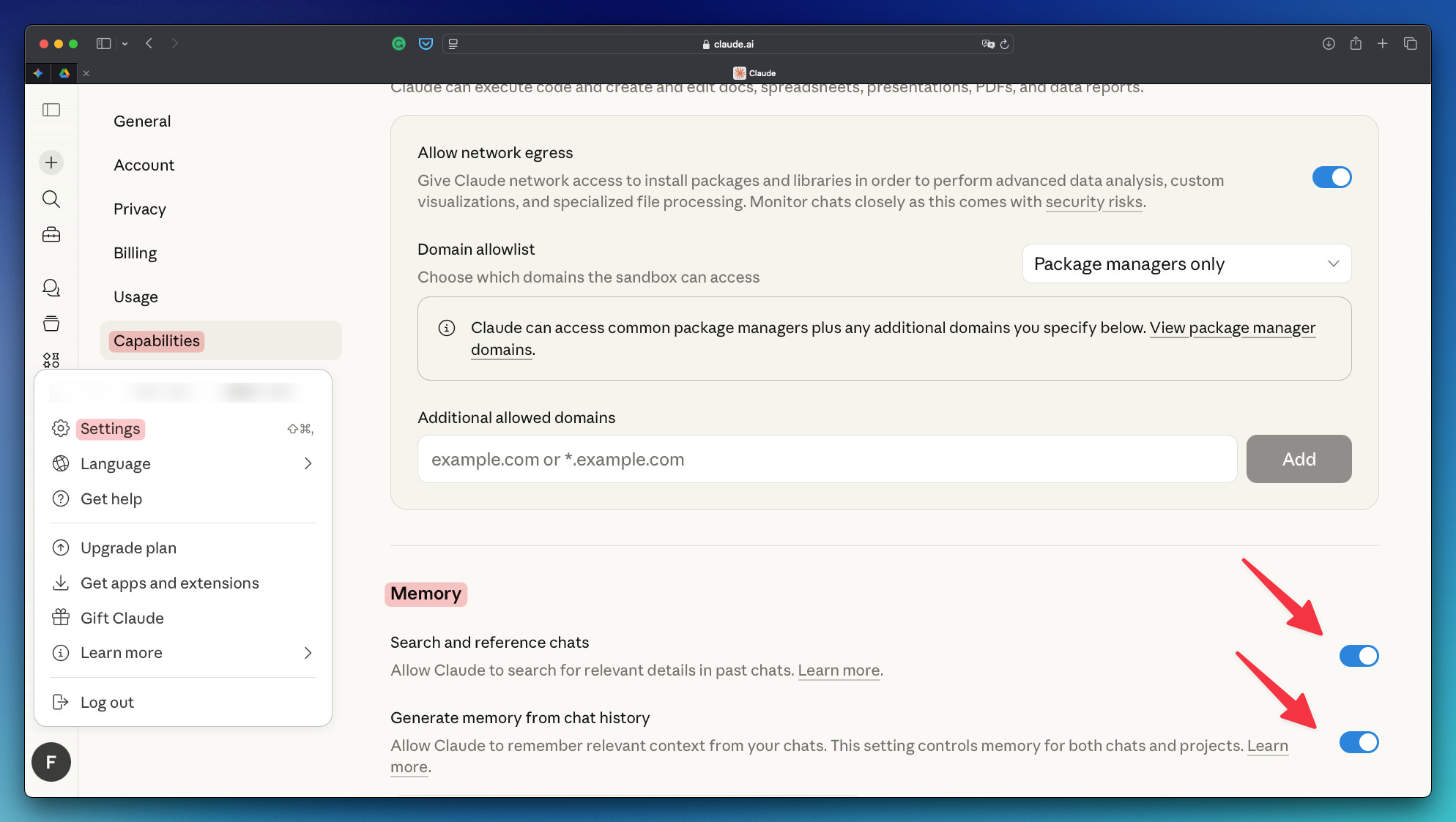
Go to Claude settings → Capabilities → Turn on Memory
-
Open a new chat → Type “Update your memory about me with this“ → Paste the saved memories (or custom instructions)
That’s it!
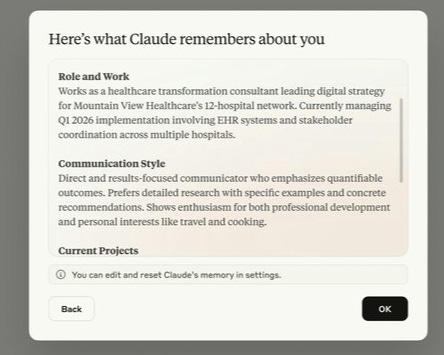
Now Claude has the full memory of what ChatGPT has learned about you over the years. If you want to review or edit your memory in Claude, go to Settings → Capabilities → Memory → Memory from your chats
📚 If you’re new to Claude, you might find these guides useful:
-
Best Claude features: artificialcorner.com/p/claude
-
Don’t use Claude wrong: artificialcorner.com/p/claude-levels
-
How Claude Cowork saves me time: artificialcorner.com/p/cowork
Option #3: Transfer all your data from ChatGPT to Claude
This method involves exporting your ChatGPT data and uploading it to Claude.
-
Go to ChatGPT settings
-
Select “Data controls”
-
Click on export data
After some hours, you’ll get an email with your ChatGPT data (I got mine after 24 hours)
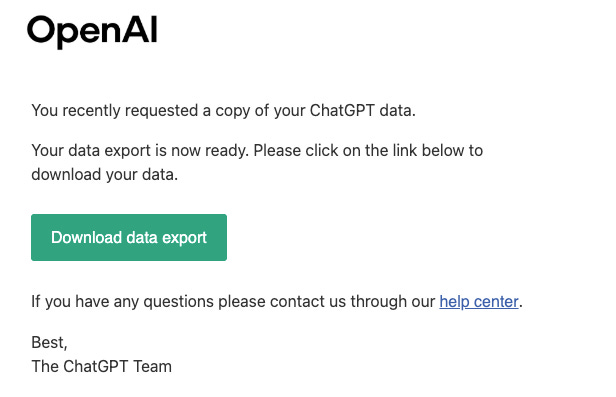
You’ll get a zip file. Download it and unzip it.
The data export from OpenAI is big (mine was 3.5GB). Here are the two best ways to connect it to Claude:
-
Create a Claude project and upload only the chat.html file
-
Point Claude Cowork to the whole folder
#1 Upload only the chat.html file to a project
chat.html is a smaller file inside the data export that contains our chat history
We can upload this file to a Claude project. The only issue is that project files have a 30MB limit in Claude.
If your chat.html file is under 30MB, do this:
-
Go to Claude → Projects (left bar) → New Project
-
Click on the + inside Files and upload the chat.html file
If your chat.html file is over 30MB, do this:
-
Open the chat.html file
-
Select all the text (Ctrl + A) and copy everything
-
Go to Claude → Projects (left bar) → New Project
-
Click on the + inside File → Add text content → Paste the text → Click “Add content”
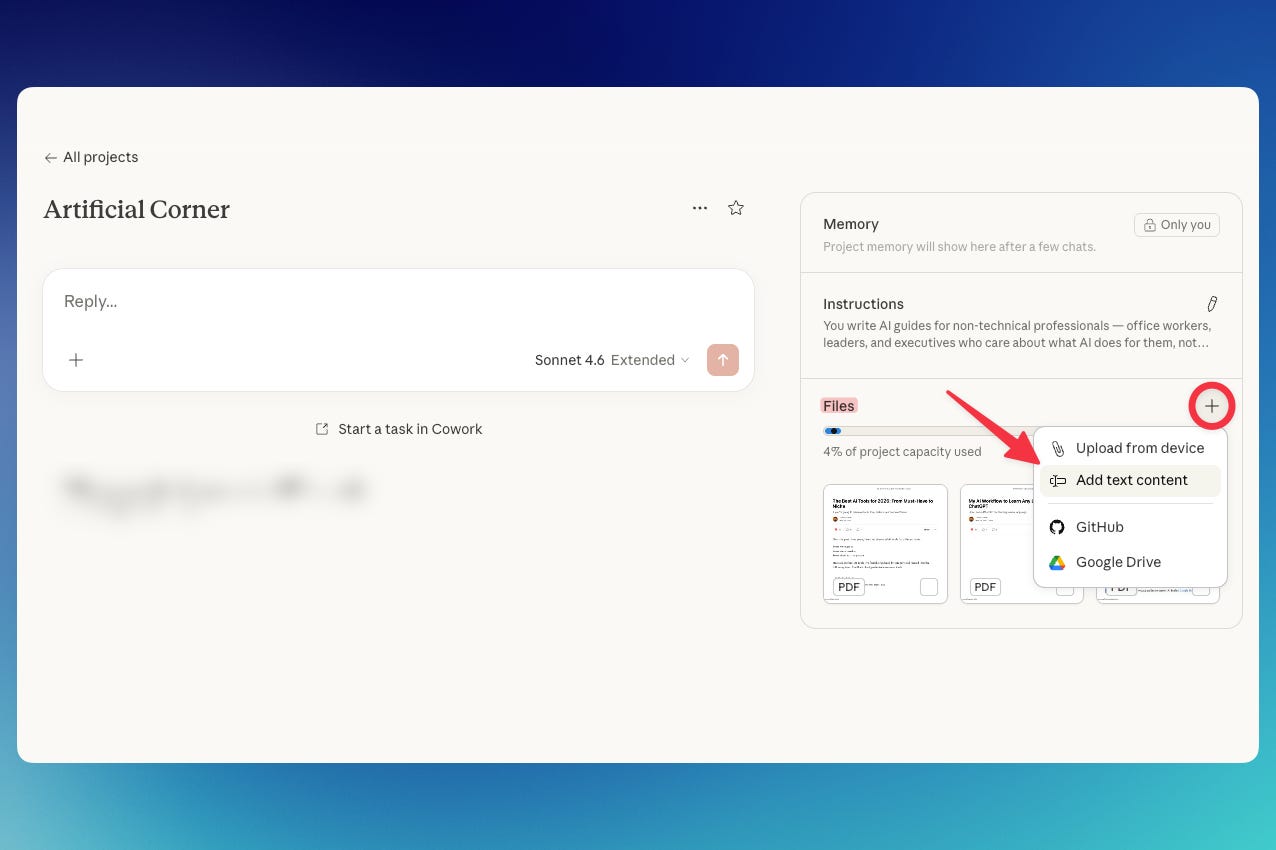
After following the steps, Claude will have knowledge of your ChatGPT chats.
#2 Point Claude Cowork to the whole folder
Cowork is a tool available in the desktop app. It’s different from regular Claude.
One key difference is that Cowork can access your local files directly (without manual file uploads).
Although Claude Cowork can’t connect to your Claude memory or projects, it’s still useful when you want to find specific information in your ChatGPT data.
Just download Claude for desktop, install it, and open the app.
Choose Cowork and give it access to the folder that contains your ChatGPT data.
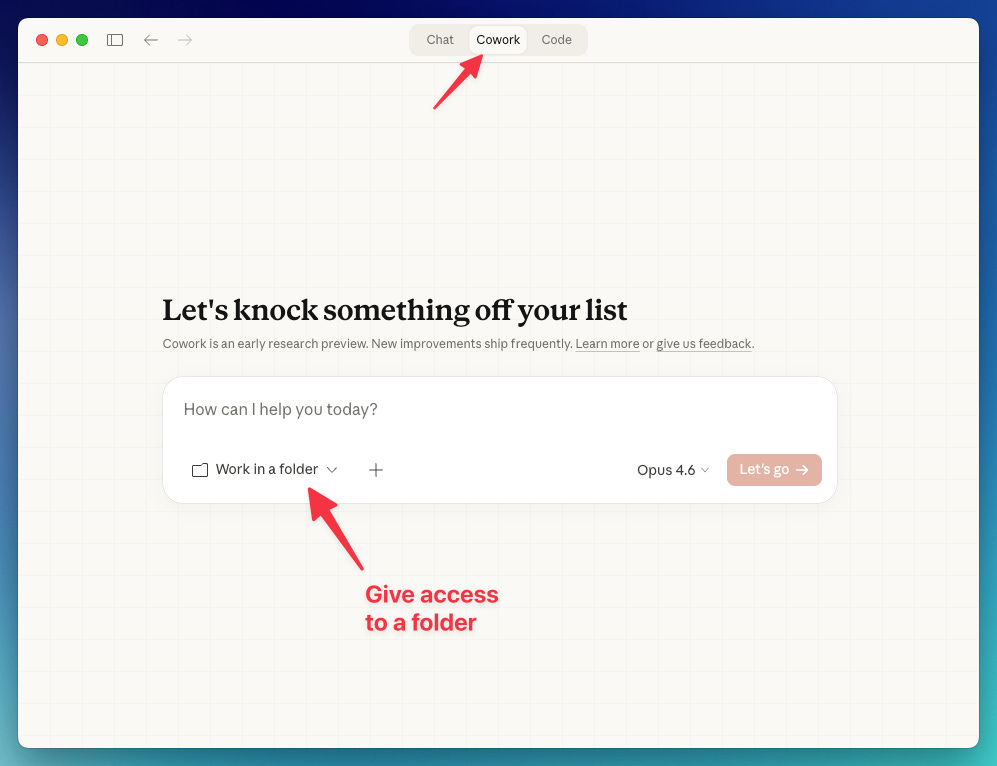
After that, Cowork will have all your ChatGPT knowledge.
That said, regular Claude still doesn’t have this knowledge. You could ask Cowork to create a blueprint from your ChatGPT data and then upload it to Claude’s memory. If you need that, here’s a Notion repository where you can find a long migration prompt that generates that blueprint.
Subscribe to get my FREE Claude course.
20+ lessons delivered straight to your inbox 👇