
I’ve been automating reports since I learned to code in Python (actually, that’s the reason why I learned to code!), and now it seems that AI can do this for us with just one prompt.
And I say it “seems“ because tools like ChatGPT agent can produce reports where 98% of the information is correct. That seems like a nice number—until you realize that 2% error rate can lead to terrible consequences for you and your company. If you don’t do the manual work to find and understand those mistakes, you’re screwed.
In this article, I’ll share with you the best ways to use AI in Excel without compromising the quality of your final report. We’ll start with simple tasks such as generating functions, and then move on to properly automating reports with AI.
Hi! I’m Frank (aka The Pycoach)
AI & Python instructor. Over the past year, I’ve helped thousands on YouTube and Udemy master AI with beginner-friendly guides and in-depth tutorials
If you’re new here, welcome! Here’s what you might’ve missed:
Let’s learn how to make our life easier in Excel with AI (no code!)
#1 Generate Excel functions
If you have a hard time memorizing Excel functions, I have good news for you: now AI can generate the formulas for you!
There are two ways to do it:
-
=COPILOT(“prompt“): For Excel users, but you need a Microsoft 365 subscription
-
=AI(“prompt“): For Google Sheet users. Free for everyone
Both formulas work similarly. In both, you have to type a natural-language prompt within parentheses and optionally reference ranges.
Since Google Sheets is free, I’ll use it for the following examples (here you can see similar examples for Copilot).
Here’s the exact syntax to use:
=AI(“prompt”, [range])
In the video below, I show how to generate functions using AI:
More examples on how to use this =AI() function.
-
Generate text
=AI(”create keywords for the job title based on the summary of duties”, A2:C2)
-
Summarize input cell or range
=AI(”For the customer, write a one sentence summary of their feedback”, A2:D2)
-
Analyze sentiment
=AI(”Classify the sentiment of the movie reviews”, A2:D2)
-
Get up-to-date information from the web
=AI(”What is the population of the list countries?”, A2:A10)
=AI and =COPILOT are reliable functions that will get the job done without you worrying about the results.
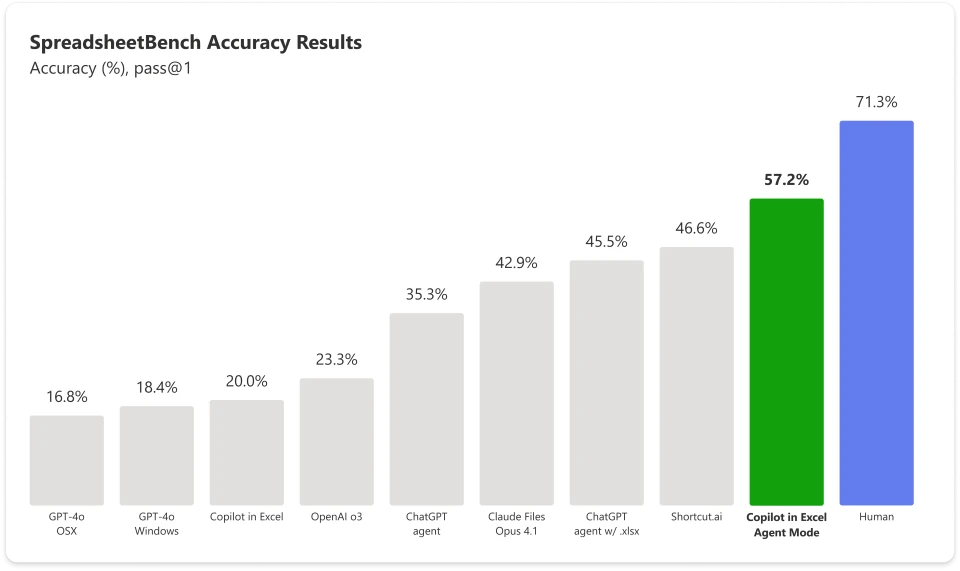
However, when it comes to generating reports with AI, things get more complicated. Truth is, tools like ChatGPT agent aren’t free of mistakes. If I had to choose an AI to do Excel tasks for me, like getting insights and making charts, I’d choose Microsoft 365 Copilot’s agent mode.
That said, we can still run into errors with Copilot’s agent mode. Although SpreadsheetBench indicates it outperforms other models on a variety of spreadsheet tasks, its 57.2% score tells us that it can only be a helpful assistant, but not a foolproof tool for critical work.
#2 So what’s my approach to automating reports with AI?
It’s by creating prompts for each stage of the automation (data cleaning, processing, visualizations, etc). In the past, I used to create Python scripts for each stage, but now we can use plain-English prompts to:
-
Generate reliable reports
-
Control each stage of the automation
In addition to that, I’ll show you how to automate all of this by using a new feature called Claude Skills (that can also be used in ChatGPT and Gemini)
This type of automation isn’t for a one-off report. This is for recurring reports delivered weekly, monthly, or quarterly, saving you hours every time!
All of this (+copy & paste prompts) can be found below👇 Paid-member only 🙂