Most people still use Claude like this:
Ask → Read → Copy → Rebuild somewhere else
That workflow made sense when Claude was just a text generator. But it’s starting to fall short.
Claude can now create three types of outputs:
-
Charts: Helps you explore data, ideas, or processes visually, right inside the chat.
-
Artifact: Builds something you can actually use (a tool, page, dashboard, etc).
-
Live artifact: An artifact that connects to external data sources and refreshes with real-time data every time it’s opened.
Each one shows up in a different place: Charts stay in the chat, Artifacts open in a separate panel, and Live Artifacts live inside Claude Cowork.
In this guide, you’ll learn how to make the most out of them.
Consider becoming a paid subscriber to get full access to my Claude course, workflows, video courses and more 👇
1) Charts & widgets
Charts and widgets are useful when you need to see data, ideas, or processes clearly. You don’t need an external tool. Just ask Claude to turn the information into a visualization.
Quick steps:
-
Open Claude
-
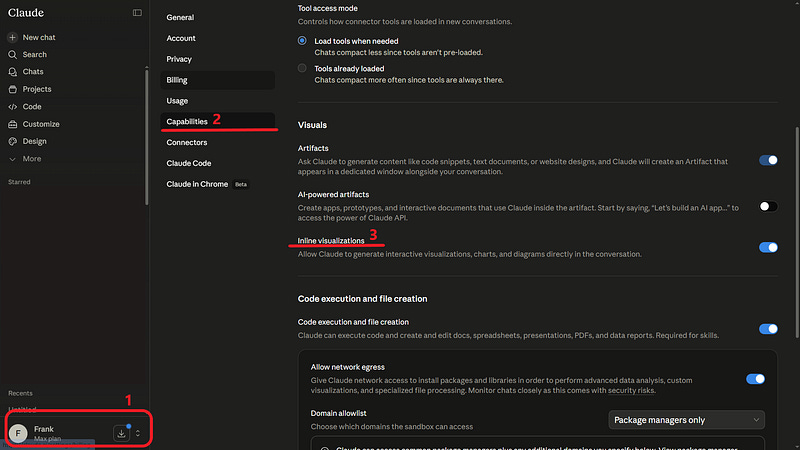
Go to Settings → Capabilities → Visuals → Turn on Inline visualizations
-
Here’s a base prompt you can start from:
Create an interactive chart from this data.

Make it explorable, not just static.

Include:
- hover details
- highlighted insights
- clear labels
- a short explanation of what the chart shows

If useful, add filters or toggles so I can compare different views.
Let’s look at some examples.
Example 1: Newsletter funnel
Create an interactive funnel chart from this data.

Data:
- Impressions: 50,000
- Profile visits: 8,000
- Clicks: 2,400
- Subscribers: 620

Make it explorable, not just static.

Include:
- hover details for each stage
- conversion rate between stages
- total drop-off between stages
- a highlighted insight for the biggest drop-off
- clear labels
- a short explanation of what the chart shows
Example 2: Content performance chart
Create an interactive chart from this data.

Data:
- LinkedIn post: 18,000 views, 760 clicks, 120 subscribers
- Substack article: 7,500 views, 980 clicks, 210 subscribers
- X thread: 12,000 views, 430 clicks, 80 subscribers
- YouTube short: 25,000 views, 510 clicks, 95 subscribers
- Carousel: 9,800 views, 690 clicks, 150 subscribers

Make it explorable, not just static.

Include:
- hover details for each content format
- highlighted insights for the best format by metric
- clear labels
- a short explanation of what the chart shows
- toggles to compare views, clicks, and subscribers
The toggle is what makes it interactive. Without it, you get a static image you can only look at.
Example 3: Claude tools map
Create an interactive visual comparison between:

- Claude Chat
- Projects
- Artifacts
- Cowork
- Claude Code

Show when each one should be used.

Make it interactive.

Include:
- clickable cards for each tool
- best use case
- example prompt
- difficulty level
- when not to use it
Asking for clickable cards is what makes it interactive. Without that, Claude might give you a flat comparison table.
Example 4: Workflow bottleneck chart
Create an interactive chart from this workflow data.

Data:
- Ideas: 40
- Outlines: 18
- Drafts: 9
- Edited articles: 5
- Published articles: 3

Make it explorable, not just static.

Include:
- hover details for each stage
- conversion rate between stages
- drop-off between stages
- highlighted insight for the biggest bottleneck
- clear labels
- a short explanation of what the chart shows
- a recommendation for what to improve first
Example 5: Article process diagram
Create an interactive process diagram that explains how an article moves from idea to published post.

Stages:
- idea
- research
- outline
- draft
- editing
- visuals
- publishing

Make each stage clickable.

For each stage, show:
- goal
- main task
- common mistake
- useful Claude prompt
The key phrase is “Make each stage clickable.” Without it, Claude might give you a flat diagram with no interaction.
2) Artifacts
An artifact helps you build something. It shows up in a separate panel.
Quick steps:
-
Open Claude
-
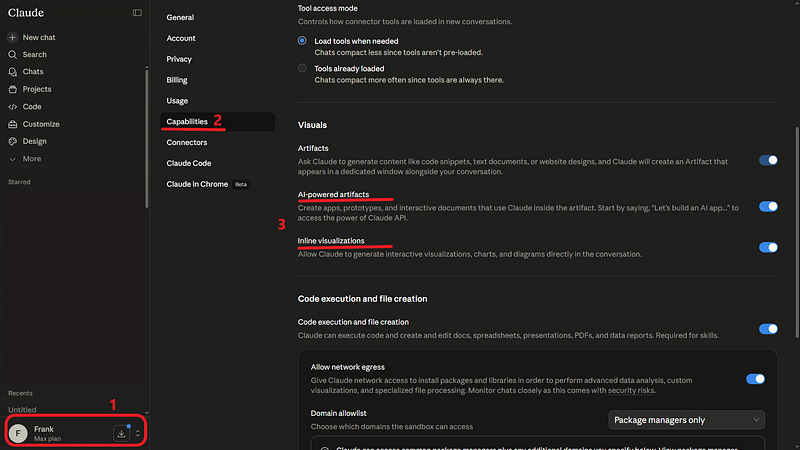
Go to Settings → Capabilities → Visuals → Turn on Artifacts and AI-powered artifacts
-
Here’s a base prompt you can start from:
Build an interactive [tool/dashboard/page/calculator] for [use case].

It should include [elements].

Make it clean, simple, and easy to use.

Build this as an interactive artifact.
Make it usable, not just explanatory.
Example 1: Content pipeline dashboard
Build an interactive dashboard for a content pipeline.

Use this sample data:
- 12 ideas
- 5 outlines
- 3 drafts
- 2 articles in review
- 4 scheduled posts
- 18 published posts

It should include:
- summary cards
- filters by platform, status, and priority
- a table view
- a simple progress overview
- next action for each item

Make it clean, simple, and easy to use.

Build this as an interactive Artifact.
Make it usable, not just explanatory.
Example 2: Article effort calculator
Build an interactive calculator for estimating article production effort.

Use this case:
- Article type: long-form guide
- Research time: 3 hours
- Writing time: 4 hours
- Editing time: 2 hours
- Visuals: 3 visuals
- Publishing format: Substack + LinkedIn repurpose

It should include:
- editable inputs
- total estimated hours
- difficulty level
- recommendation
- warning if the workload is too high for one day

Make it clean, simple, and easy to use.

Build this as an interactive Artifact.
Make it usable, not just explanatory.
Example 3: Interactive learning guide
Build an interactive guide based on this article:

[PASTE ARTICLE LINK]

It should include:
- main idea
- step-by-step workflow
- visual map
- copy-ready prompts
- examples
- common mistakes
- checklist
- suggested next action

Make it clean, simple, and easy to use.

Build this as an interactive Artifact.
Make it usable, not just explanatory.
“Make it usable, not just explanatory” is the phrase that does the heavy lifting. Without it, Claude might just summarize the article.
Example 4: AI tools comparison dashboard
Build an interactive comparison dashboard for AI tools.

Compare:
- Claude Chat
- Claude Projects
- Artifacts
- Cowork
- Claude Code

It should include:
- best use case
- difficulty level
- example prompt
- when not to use it
- recommended user type
- decision filter by goal

Use some understated emoticons, as well as the company logo and all the branding elements.

Make it clean, simple, and easy to use.

Build this as an interactive Artifact.
Make it usable, not just explanatory.
3) Live Artifacts
A live artifact is useful when you need a dashboard, tracker, or workspace you can return to. Claude builds it once, and then you keep reviewing, updating, and reusing it inside Claude Cowork.
Quick steps:
-
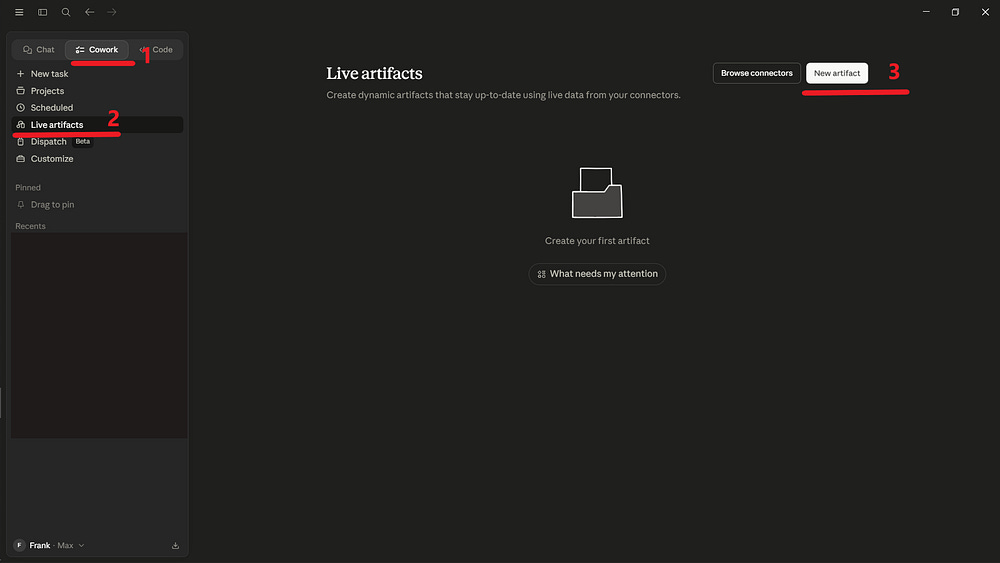
Open Claude Desktop → Cowork
-
Select “Live artifacts“
-
Create or open an Artifact
-
Here’s a base prompt you can start from:
Create a live [tracker/monitor/dashboard/workspace] inside Claude Cowork.

Use this context:
- [source 1]
- [source 2]
- [source 3]

It should track:
- [field 1]
- [field 2]
- [field 3]
- [field 4]

Make it useful from the first version.

Include sample data, current entries, or imported items when possible.

Show what changed.
Show what needs attention.
Highlight blockers, opportunities, or next actions.
Example 1: Live content operating system
Create a live AI video radar inside Claude Cowork.

Goal:
Track recent YouTube videos about AI, Claude, Claude Code, AI productivity, and workflow automation.

Use official or authorized sources when possible, such as:
- YouTube Data API
- channel RSS feeds
- exported CSV files
- manually pasted video links

Track:
- video title
- channel
- publish date
- views
- likes
- comment count
- duration
- topic category
- why it matters
- possible article angle
- possible LinkedIn post idea
- possible X post idea
- next action

Start with these search topics:
- Claude Code
- Claude Artifacts
- Claude Cowork
- AI productivity
- AI agents
- prompt engineering

Make it easy to refresh weekly.

Highlight:
- videos growing fast
- repeated topics across channels
- content gaps I could write about
- videos worth watching first
To make it work better: Ask for authorized sources: the YouTube Data API, exported CSV files, or manually pasted links. Direct scraping is less stable and might break.
Example 2: Live content ecosystem monitor
Create a live content ecosystem monitor inside Claude Cowork.

Use these sources as context:
- Substack: [PASTE SUBSTACK LINK]
- X profile: [PASTE X LINK]
- Medium: [PASTE MEDIUM LINK]
- LinkedIn: [PASTE LINKEDIN LINK]

Track:
- platform
- content title or post idea
- topic
- format
- target audience
- reusable example
- reusable prompt
- repurposing opportunity
- suggested next action
- status

Organize the workspace into:
- published content
- ideas to repurpose
- examples worth reusing
- prompts worth saving
- next content actions

Make it useful from the first version.

If Claude cannot access a source directly, create the structure and ask me to paste examples or exports.
Example 3: Live Skills Library and Skill Router
Create a live Skills Library and Skill Router inside Claude Cowork.

Before building, check whether you can access the Skills available in this Cowork Project.

If you can access them:

- show me the Skills you found
- group them by source or plugin
- ask me to confirm before building

If you cannot access them:
- ask me to paste or upload the Skills list

Do not use Gmail.
Do not use email.
Do not use Calendar.
Do not use external connectors.
Do not create an inbox dashboard.
Do not switch the use case.

After I confirm, build the Live Artifact with two modes:

Mode 1: Skills Library
Track:
- Skill name
- Source/plugin
- Category
- Main purpose
- When to use it
- Required inputs
- Expected output
- Example prompt
- Related workflows
- Last updated
- Status
- Improvement ideas

Mode 2: Skill Router
The user describes a task.
Then recommend:
- best Skill
- alternative Skill if relevant
- why it fits
- what input I should provide
- copy-ready prompt
- missing context needed

Also include:
- search
- filters by category, source/plugin, and status
- a section for duplicated or overlapping Skills
- a section for Skills missing examples
- a section for Skills that should become templates

For Last updated, use “Unknown” if there is no metadata.
For Status, use:
- Active by default
- Needs review if the Skill has weak instructions, missing examples, unclear inputs, or overlaps with another Skill
The library with filters and the Skill Router are what make this actually useful. Without them, you’d just have a list of Skills with no way to know which one to use and what input to provide.