Most AI tools chat. Cowork acts.
You point Cowork at your inbox or your files, give it a clear job, and it goes and does it: scans, extracts, saves the result, etc.
No copy-paste. No tab juggling.
But that “give it a clear job” part is where most people lose.
They open Cowork, type something vague, and get back a half-baked answer and stop there.
That’s the mistake. Cowork is built for iteration. You have to co-work with it: feedback, tweak, repeat — until the output is exactly what you need. Then you ask Cowork to rewrite your original prompt so the workflow runs cleanly next time.
That’s what Ilia and I did.
We automated boring, repetitive tasks with Cowork. After a lot of trial and error, we landed on 7 prompts that many of you will find useful.
In this guide, you’ll get prompts to automate:
-
Freelance Invoice Tracker
-
Vendor Comparison Table
-
Travel Itinerary Builder
-
Meeting Transcript → Action Items
-
Subscription Tracker
-
Job Application Tracker
-
Organize Downloads Folder
This guide was written in collaboration with Ilia Karelin.
Ilia writes Prosper, a newsletter focused on practical AI workflows, systems, and frameworks for professionals who want to use AI more thoughtfully.
The difference: the file version is a snapshot you have to re-run. The live artifact stays connected to Gmail, so every time you open it, it re-scans your inbox and updates totals and statuses automatically. New invoice sent, payment received, due date passed, it reflects all of it without touching the prompt again. And if you want to refresh mid-session, hit the Reload button in the top right corner of the artifact, it re-scans Gmail on demand and updates everything instantly.
2. Vendor Comparison Table
You’re evaluating tools. You have 10 tabs open. You still haven’t decided. This prompt researches every option and produces a structured comparison table with a clear recommendation.
What it does:
– Researches each vendor’s pricing, features, and limitations
– Pulls user sentiment from G2, Capterra, and Reddit
– Builds a scored comparison table
– Gives a direct recommendation for your use case
The prompt:
I’m evaluating tools/services and need a structured comparison to make a decision.

VENDORS TO COMPARE:

1. [Vendor 1]
2. [Vendor 2]
3. [Vendor 3]

WHAT I’M TRYING TO DO:

[Describe your use case in one sentence]

MY BUDGET: [Monthly or annual budget range]

TEAM SIZE: [Just me / Small team 2-10 / Medium team 10-50]

FOR EACH VENDOR, RESEARCH AND FILL IN:

## Pricing

- Free tier: yes/no, what’s included
- Paid plans: price per seat or flat rate
- Annual vs monthly discount
- Hidden costs (storage limits, API calls, add-ons)

## Core Features

- Does it handle [YOUR PRIMARY USE CASE]?
- Top 3 things it does well
- Top 2 limitations

## Integrations

- Connects to [YOUR KEY TOOLS]?
- Native vs. Zapier/Make required

## User Sentiment

- X / Capterra / Reddit consensus
- Most common complaint
- Most common praise

BUILD A COMPARISON TABLE:

- Rows: each vendor
- Columns: pricing, core fit, integrations, support, overall score (1-10)

RECOMMENDATION:

- Best overall for my use case
- Best budget option
- One to avoid and why

OUTPUT: Save as [topic]-vendor-comparison.md in [YOUR FOLDER PATH]
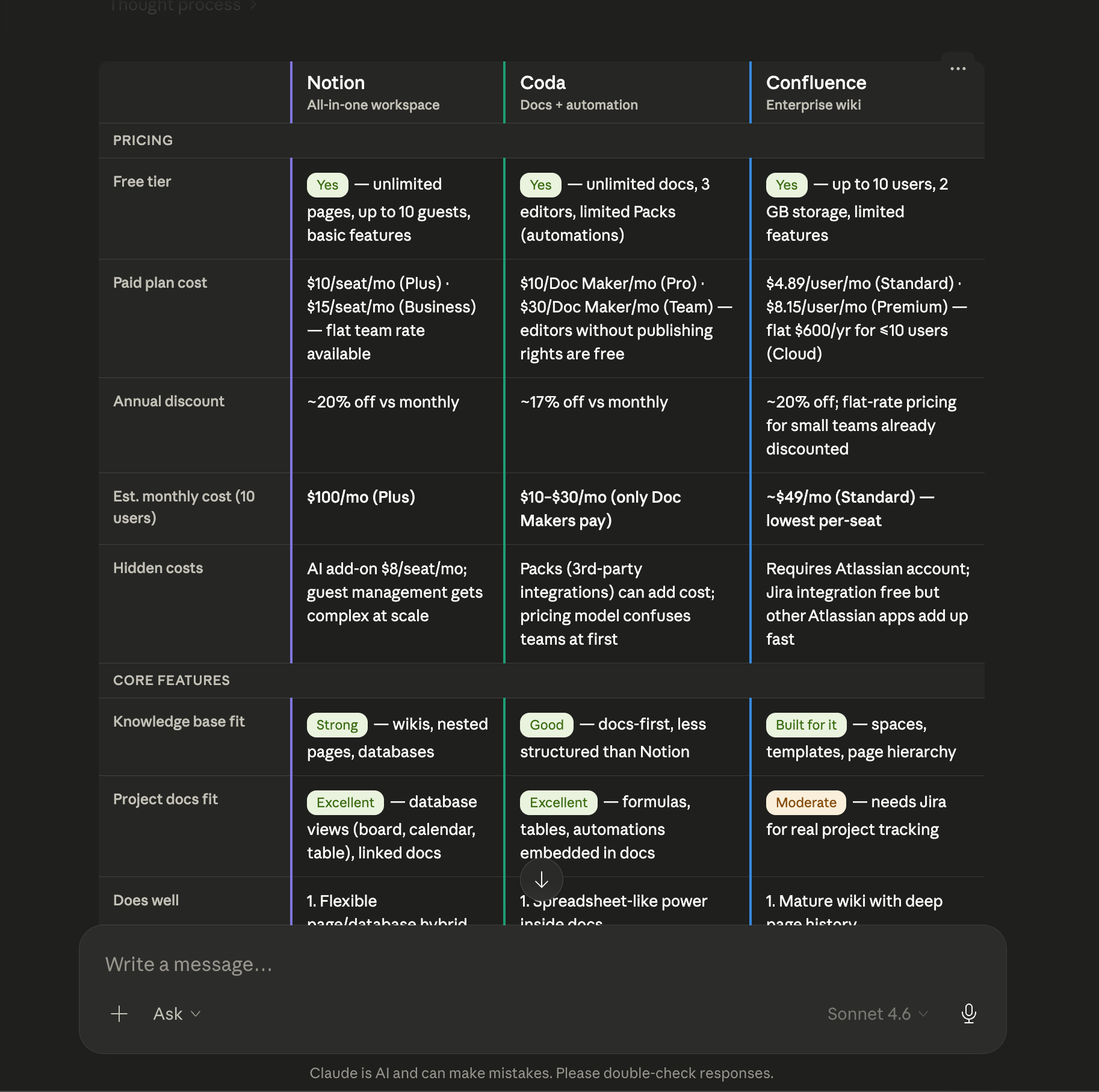
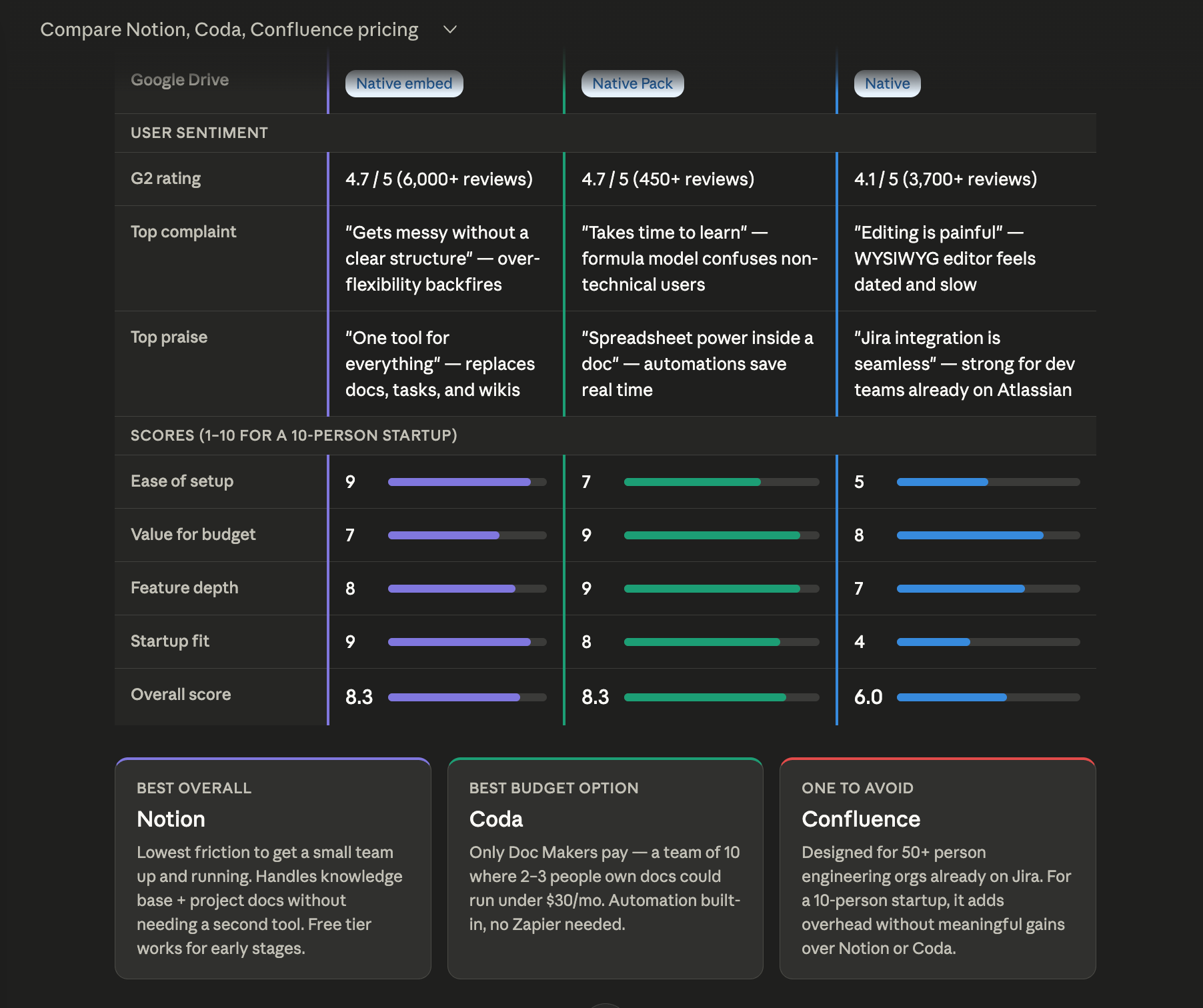
Here’s the end result:
And then it gave the best options for your and which one to avoid as well:
Pro tip: Add “MY CURRENT TOOL: [name]” to the prompt if you’re switching. Cowork will include a migration difficulty rating for each alternative.
3. Travel Itinerary Builder
Your trip confirmations are scattered across 12 emails. This prompt finds all of them and assembles a single chronological itinerary with every confirmation number, address, and time in one place.
What it does:
– Scans Gmail for flight, hotel, and booking confirmation emails
– Extracts times, addresses, and confirmation numbers
– Builds a day-by-day itinerary in order
– Flags gaps and anything missing a confirmation number
The prompt:
Scan my inbox for all travel-related emails and build a complete trip itinerary.

GMAIL FILTER:

- Search for: flight confirmation, hotel booking, reservation, booking confirmation, check-in, itinerary
- Date range: emails from [TODAY] to [TRIP END DATE]
- Focus on trip to: [DESTINATION]

FOR EACH TRAVEL ELEMENT FOUND, EXTRACT:

FLIGHTS:

- Airline and flight number
- Departure: airport, terminal, date, time
- Arrival: airport, terminal, date, time
- Booking reference and seat number

ACCOMMODATION:

- Hotel/Airbnb name and address
- Check-in and check-out date and time
- Confirmation number
- Any notes (parking, early check-in, etc.)

OTHER BOOKINGS:

- Car rentals, trains, tours, restaurants
- Date, time, confirmation number, address

BUILD THE ITINERARY:

- Organized chronologically by day
- Each day: date as header, all events in time order
- Each event: time | what | address | confirmation number
- Flag any gaps (e.g., arriving at 11pm but hotel check-in closes at 10pm)
- Flag anything missing a confirmation number

SUMMARY AT THE TOP:

- Trip dates
- Destination(s)
- Total flights / nights / bookings

OUTPUT: Save as [destination]-[dates]-itinerary.md in [YOUR FOLDER PATH]
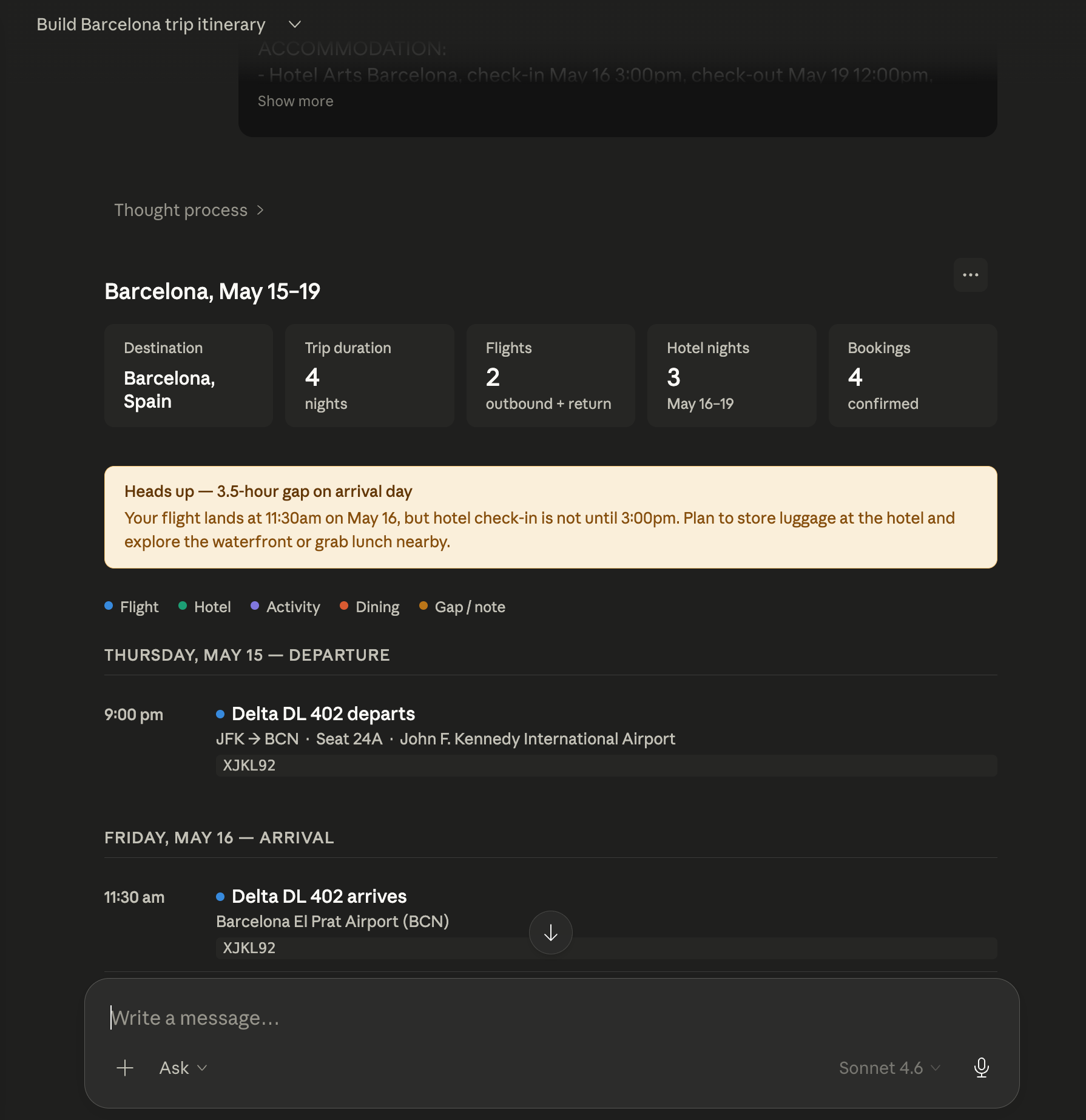
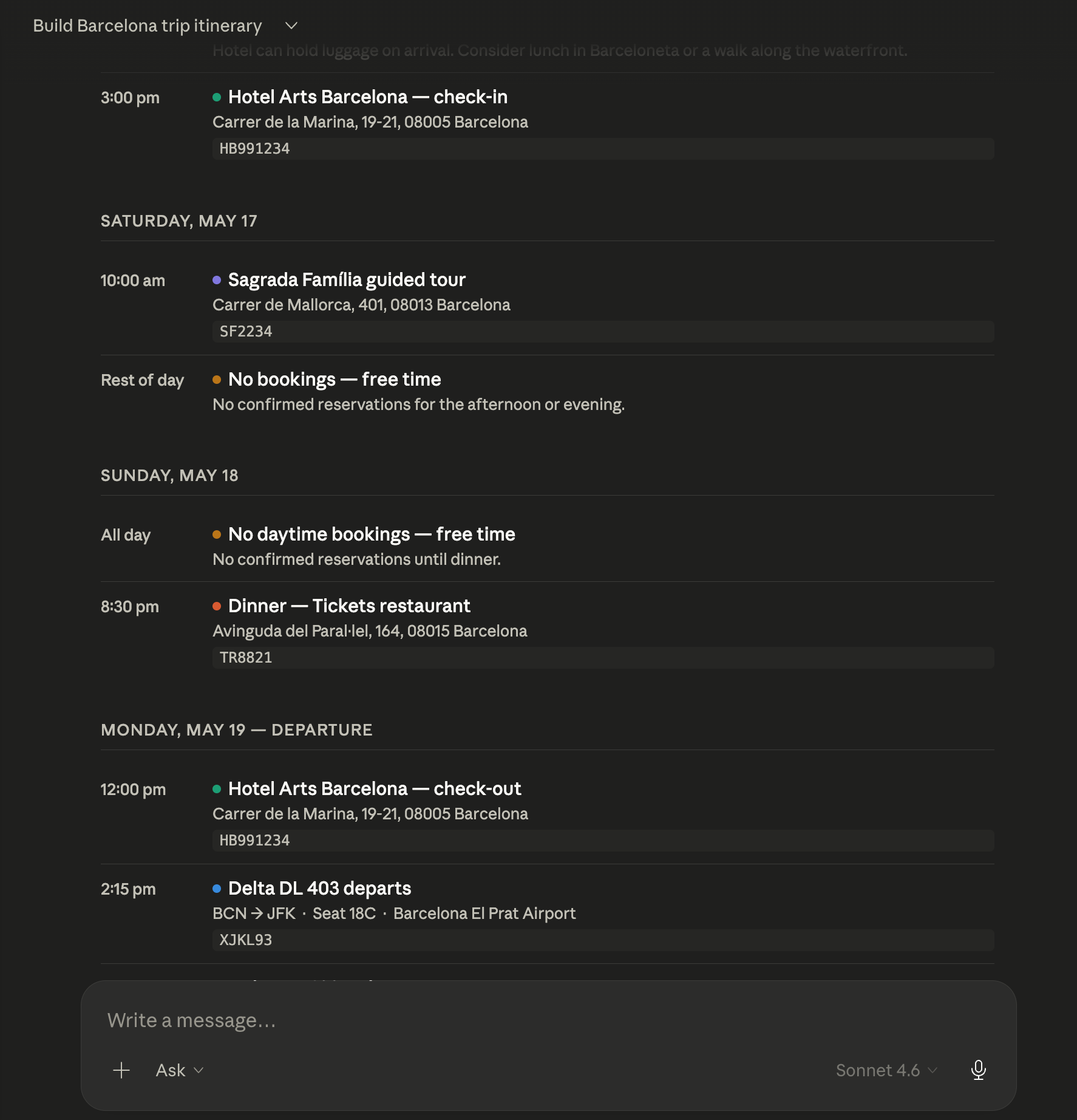
Here’s the end result:
Pro tip: Run this 48 hours before departure, not the morning of. The gap-flagging is where it earns its keep, a missed check-in window is easy to fix with two days to spare.
4. Meeting Transcript → Action Items
The call ended. Everyone said “I’ll follow up.” Nobody followed up. This prompt reads any transcript or notes file and returns every decision, action item, and open question, plus a ready-to-send follow-up email.
What it does:
– Reads any transcript or meeting notes file from a local folder
– Extracts decisions made, action items with owners, and open questions
– Writes a follow-up email ready to send with zero edits
– Flags anything assigned to no one
The prompt:
I have a meeting transcript or notes file. Extract everything actionable and structured.

FOLDER TO SEARCH: [Downloads / Desktop / specify path]

FILE NAME (or partial match): [e.g., “meeting”, “call”, date, or topic]

FILE TYPE: [.txt / .pdf / .docx / .md / .vtt]

MEETING CONTEXT:

- Meeting type: [Team standup / Client call / Strategy session / 1:1 / Other]
- Attendees (if known): [Names or roles]
- Date of meeting: [DATE]

ONCE YOU FIND THE FILE, EXTRACT:

## 1. Decisions Made

- Every decision that was reached (not discussed — decided)
- Format: Decision | Owner | Effective date

## 2. Action Items

- Every task, commitment, or next step mentioned
- Format: Task | Owner | Deadline | Priority (High/Medium/Low)
- Flag as [UNASSIGNED] if no owner named
- Flag as [NO DATE] if no deadline mentioned

## 3. Open Questions

- Everything raised but not resolved
- Format: Question | Who raised it | Who should answer it

## 4. Key Discussion Points

- 3-5 bullet summary of what was actually discussed

## 5. Follow-Up Email Draft

Subject line included. Ready to send. Covers:

- Decisions made
- Action items with owners and deadlines
- Open questions with responsible parties

OUTPUT: Save as [meeting-topic]-[date]-actions.md in the same folder as the source file.
Pro tip: Works on Zoom transcripts, Otter exports, Google Meet notes, or even a rough .txt you typed during the call. Format doesn’t matter, the structure comes from the prompt.
5. Subscription tracker
Every month, we sign up for a new service: a gym membership, a streaming platform, or a Substack subscription to make the most out of AI … like this one 🙂
The subscriptions pile up, and after a while, it gets really hard to keep track of them all. We end up paying for things we don’t even use anymore.
For example, I had a €5/month Glovo Premium subscription for free delivery. When I started cooking at home, I forgot to cancel it — and only realized seven months later when I checked my bank statements. The skill below fixes this problem.
What this skill does:
-
You create a folder and save all your bank statements inside it. Create a folder for each bank and make sure the files have the month of the statement.
-
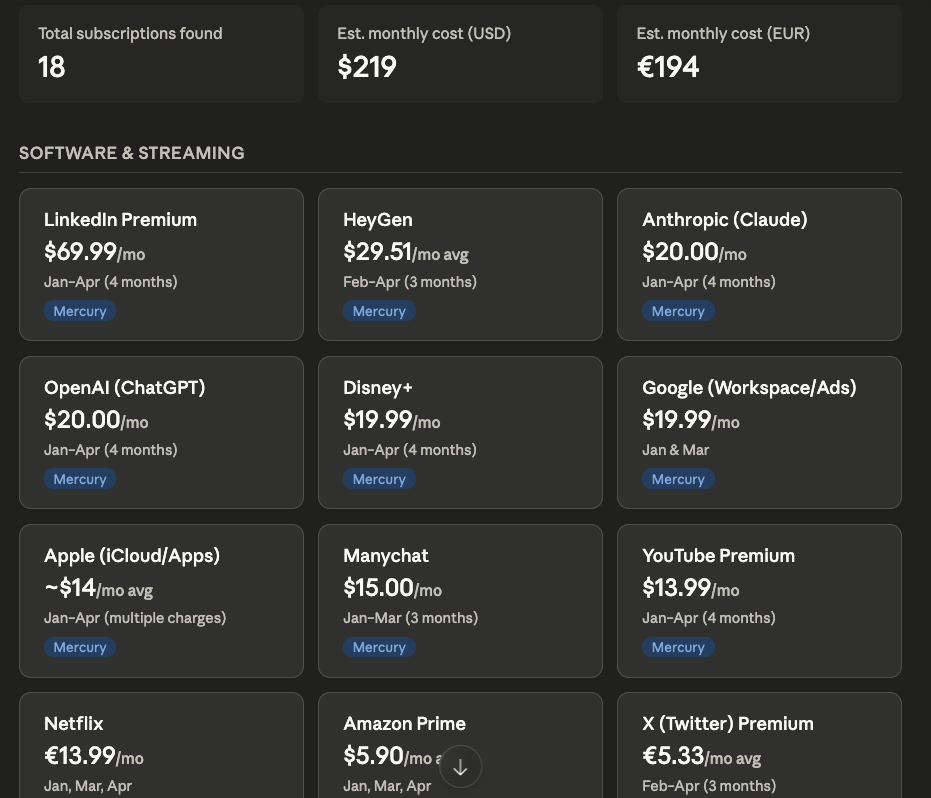
Run the prompt below. Claude builds a dashboard of your active subscriptions, sorted by category, with a card for each one showing the name, average amount, frequency, and which account it’s charged to.
-
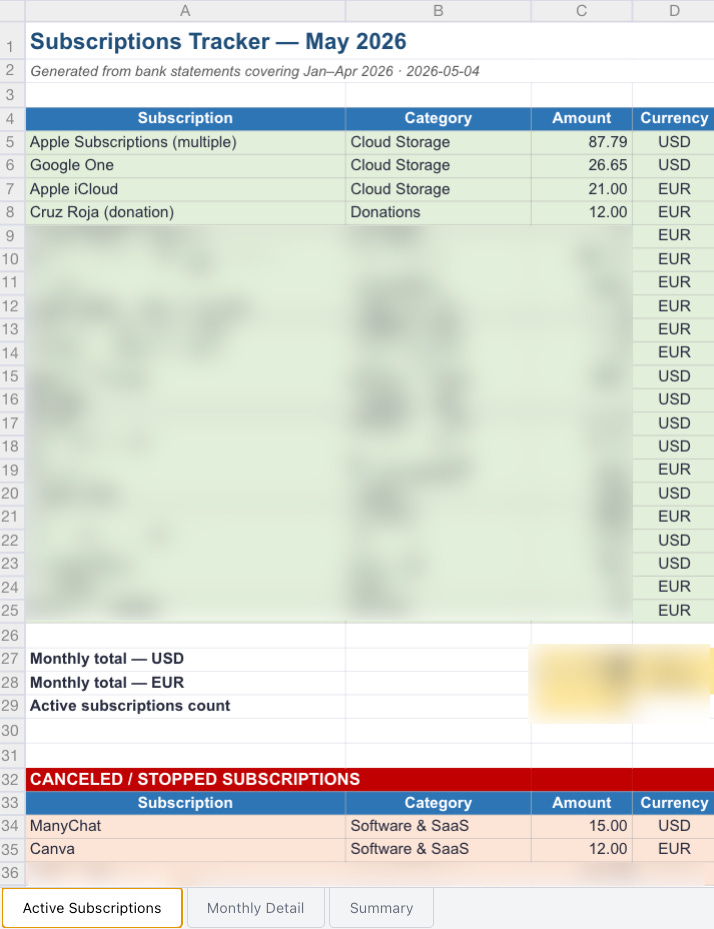
It also generates a spreadsheet in the same folder with three tables:
-
Active subscriptions — amount, currency, frequency, and account.
-
Cancelled subscriptions.
-
Monthly savings — how much you saved by cancelling the unused ones.
# Subscription tracker

Read all bank statements in my folder (any format — CSV, XLS, XLSX, PDF). Identify every recurring subscription or membership by finding charges that repeat across 2+ months with a consistent amount or merchant name.

## What to include

- Subscriptions (software, streaming, SaaS)
- Memberships (gym, coworking, clubs)
- Insurance, telecom, donations
- Any other fixed recurring charge

## What to exclude

- One-off purchases
- Groceries, dining, retail shopping
- Bank fees and currency conversion charges

## Output 1 — Visual dashboard (inline widget)

- Total number of subscriptions found
- Estimated monthly cost grouped by currency
- A card for each subscription showing: name, average amount, frequency, and which account it’s charged to
- Organized by category (software/streaming, services/utilities, etc.)

## Output 2 — Spreadsheet (.xlsx) saved to my folder

- **Active subscriptions** sheet with columns: Subscription, Amount, Currency, Frequency, Account
- Totals per currency using Excel formulas
- **Canceled subscriptions** section with a Status column (leave empty if none confirmed)
- Monthly savings row for canceled items
Pro tip: Use Task Scheduler to run this at the end of every month, so you always start the new month with a clear picture of where your money’s going.
The dashboard looks like this:
and the report looks like this:
6. Job Application Tracker
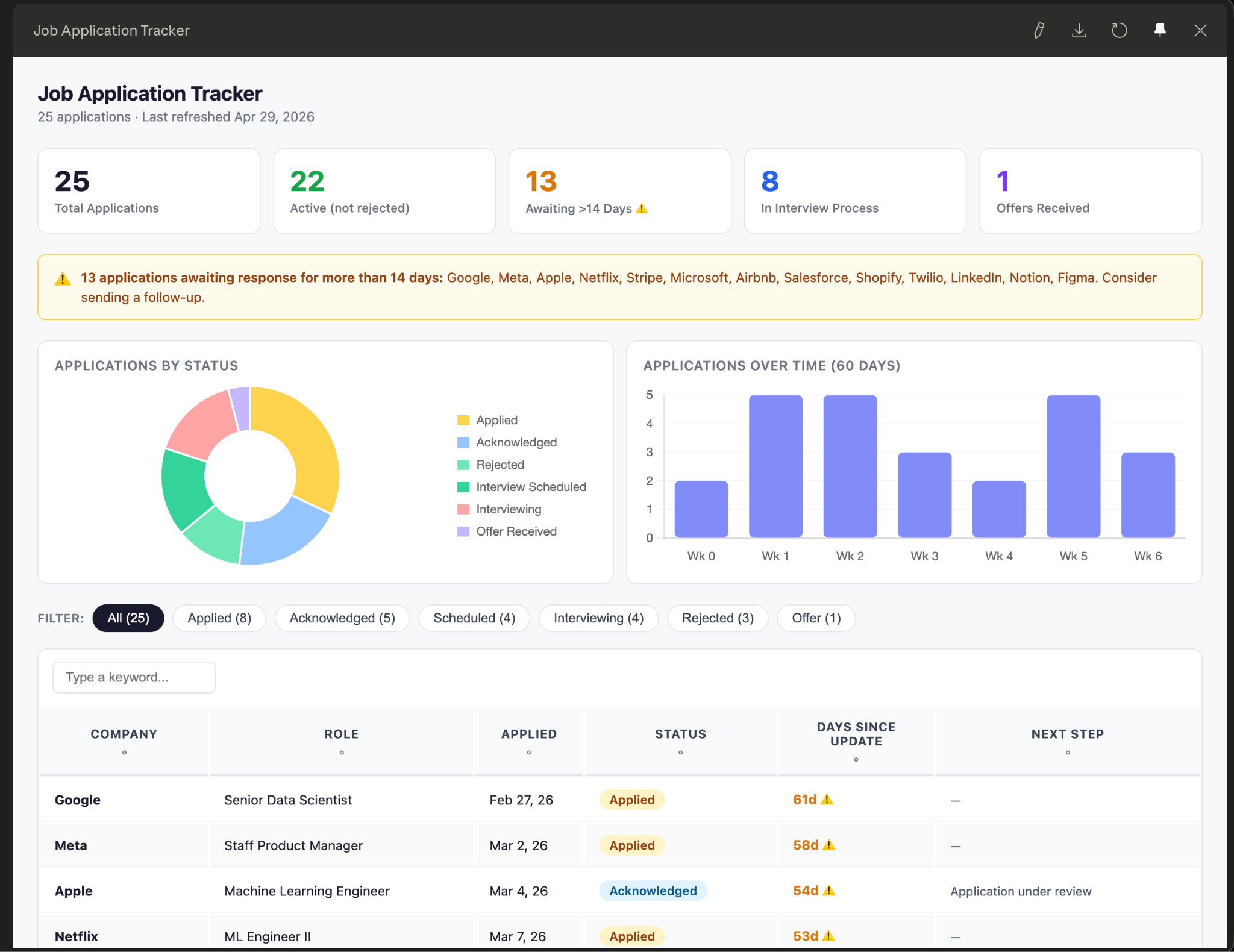
You’ve applied to 20 places. You can’t remember which ones responded. This prompt scans your inbox and builds a live dashboard of every application, sorted by how long you’ve been waiting.
What it does:
– Scans Gmail for application confirmations, interview requests, and rejections
– Assigns a status to every application
– Sorts by days since last update so nothing falls through the cracks
– Flags applications with no response after 14 days
The prompt:
Scan my inbox and build a live tracker of every job application I’ve submitted.

GMAIL FILTER:

- Search for: application received, thank you for applying, interview, next steps, unfortunately, offer
- Date range: [Last 30 days / Last 3 months / specify]

FOR EACH APPLICATION FOUND, EXTRACT:

- Company name
- Role title
- Date applied
- Current status: Applied / Acknowledged / Interview Scheduled / Interviewing / Rejected / Offer / Withdrawn
- Last email date
- Next step (if mentioned)
- Recruiter contact name (if any)

BUILD A LIVE DASHBOARD:

- One row per application
- Columns: Company | Role | Date Applied | Status | Days Since Last Update | Next Step
- Sort by: Days Since Last Update (longest first)
- Status colors: green = active/interviewing, amber = applied/waiting, red = rejected, blue = offer

SUMMARY AT TOP:

- Total applications
- Active (not rejected or withdrawn)
- Awaiting response >14 days — flag these
- Interviews scheduled
- Offers

OUTPUT: Live artifact. Every time it’s reopened, re-scan Gmail and refresh all statuses.
Do not cache the previous state.
Pro tip: The “awaiting response >14 days” flag tells you exactly where to send a follow-up. Most people let those go cold without realizing it.
The end result looks awesome:
Same live behavior as the Invoice Tracker, reopening re-scans Gmail automatically, Reload button refreshes on demand.
7. Organize Downloads Folder
Every day, we download spreadsheets, images, PDFs, and all kinds of other files straight into our Downloads folder. We don’t have time to sort them into proper folders later, so as the days go by, Downloads turns into a mess. Once an important file lands in there, it basically disappears — finding it again is a pain, especially when you’re in a rush.
What this skill does:
-
Creates separate folders for audio, documents, PDFs, images, videos, and datasets.
-
Every time you run it, it moves each file into the right folder.
-
The prompt has built-in constraints, so it will never create extra folders or delete anything in your Downloads folder.
Organize loose files in the user's selected folder (their Downloads directory) into the appropriate subfolders based on file type.

The target folders are:

- **Audio** — move all audio files here (`.mp3`, `.m4a`, `.wav`, `.flac`, `.aac`, `.ogg`, `.wma`, `.aiff`)
- **Docs** — move all docs here (`.docx`, `.txt`, `.md`, `.rtf`, `.odt`, `.doc`)
- **PDFs** — move all `.pdf` files here
- **Images** — move all image files here (`.png`, `.jpeg`, `.jpg`, `.gif`, `.webp`, `.svg`, `.bmp`, `.tiff`, `.heic`)
- **Videos** — move all video files here (`.mp4`, `.mov`, `.avi`, `.mkv`, `.webm`)
- **Datasets** — move all data files here (`.csv`, `.tsv`, `.json`, `.parquet`, `.xlsx`, `.xls`)

## Steps

1. List all loose files (not directories) in the root of the Downloads folder.
2. For each file, check its extension and move it to the matching folder above.
3. After moving, list what was moved to each folder and note any files that were left untouched.

## Constraints

- Do **NOT** create any new folders. Only use the existing folders listed above.
- Do **NOT** move, rename, or touch any existing subfolders or their contents.
- Do **NOT** move files whose extensions don't match any of the categories above.
- Never delete any files.
- Never create new directories.
- Only operate on the root level of the Downloads folder.
Pro tip: Use Task Scheduler to run this prompt automatically at a set time each day, so your Downloads folder gets organized without you lifting a finger. I personally schedule mine to run every two days at 9 p.m., and Downloads stays tidy on its own. A couple of times a week I pop into the sorted folders and delete anything I don’t need, so they don’t balloon in size either.
Did you find one of the prompts useful? Share it with others 🙂