Hi!
I wrote today’s post in collaboration with . Gencay writes LearnAIWithMe, a newsletter focused on practical AI tutorials for people who’d rather replace than be replaced by AI.
If you’re interested in building real projects with AI, I highly recommend checking out LearnAIWithMe
One of my favorite Claude Cowork tasks is web scraping.
Picture this: a bot visits a website for you, reads the page, and pulls out exactly what you need: prices, names, job listings, you name it (so you don’t have to copy-paste anything manually).
That’s what web scraping is.
Data is everywhere. Heck, without internet data, tools like ChatGPT and Claude wouldn’t even exist. The thing is, web scraping used to be a programmers-only thing.
Not anymore.
Cowork lets you scrape websites by just describing what you want in plain English. In this guide, you’ll learn two ways to web scrape:
-
Scrape with Cowork alone: Best for grabbing data from simple pages, but it’s limited to what a single browser session can do and it can struggle with JavaScript-heavy sites
-
Scrape with Cowork + the Apify connector: Best for robust, scalable scraping across complex sites. The only con is that you need monthly credits. That said, Apify’s free plan gives you $5 in monthly credits, which is enough for casual use.
By the way, I’m not associated with Apify. I just think it’s a solid option worth knowing about. That said, if you’re new to web scraping, don’t worry about it. Option 1 is a great place to start.
Fun fact: 16,401 people took my web scraping video course back when coding was the only option.
I’ll keeping making guides like this even if they make my own old content obsolete. Why? I believe powerful skills should be available to everyone.
Subscribe for more content like this (& get these perks)
1. Web scraping with Cowork
For this section, I’ll use a problem I often have as a writer. You might not have the same issue, but this example will give you a good idea of how to web scrape with Cowork.
Every day, I publish Substack Notes, which are short-form posts that help me share bite-sized AI knowledge. Substack doesn’t offer Notes stats or an API to help writers keep track of notes.
Here’s when Claude Cowork comes in.
I had Cowork scrape Substack, build a dataset, and run a monthly analysis.
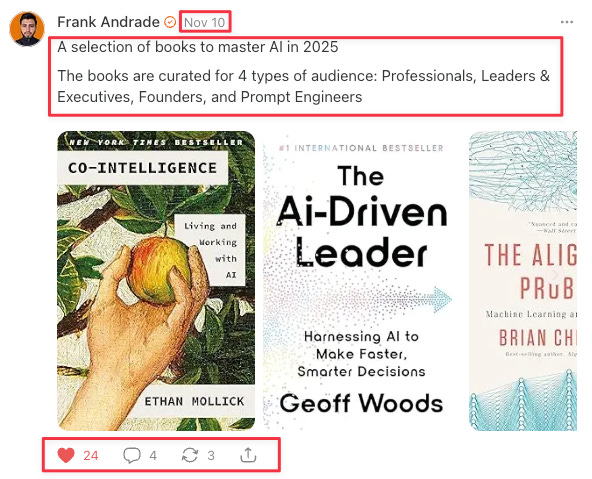
Here’s what a Note looks like (the data to extract is inside red boxes):
Here are the steps I follow to web scrape with Cowork:
-
Find your target page: Locate the website that has the data you need. In my case, it was the page where Substack archives all my published notes: artificialcorner.com/notes
-
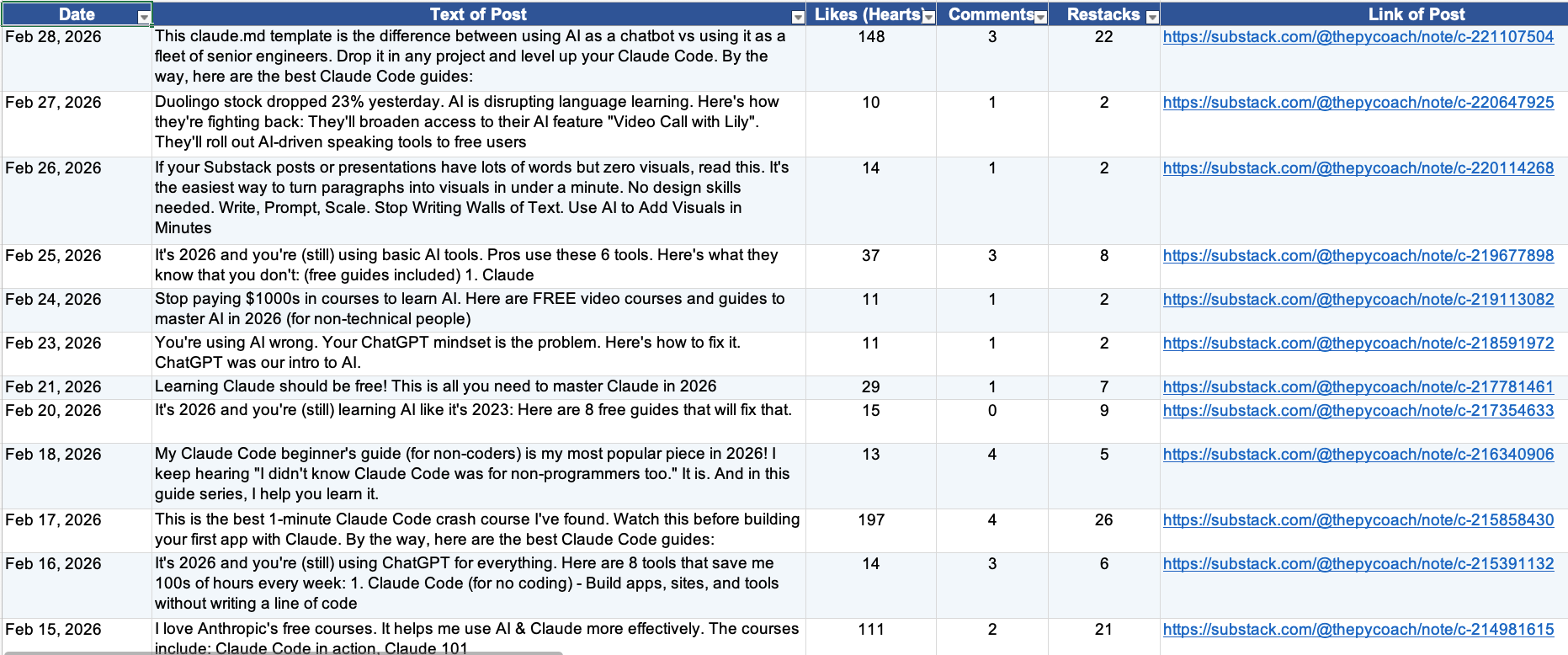
Define the fields you want to extract: Decide exactly what data points matter. I wanted to extract six fields per note: date, post text, number of likes (hearts), number of comments, number of restacks, and post link.
-
Spell out the edge cases: Think about the details that aren’t obvious at first glance — this is what separates clean data from messy data. For example, my notes archive also includes notes I restacked from other writers, which I didn’t want. So I told Claude to only extract notes authored by “Frank Andrade” and to limit the pull to a single specific month.
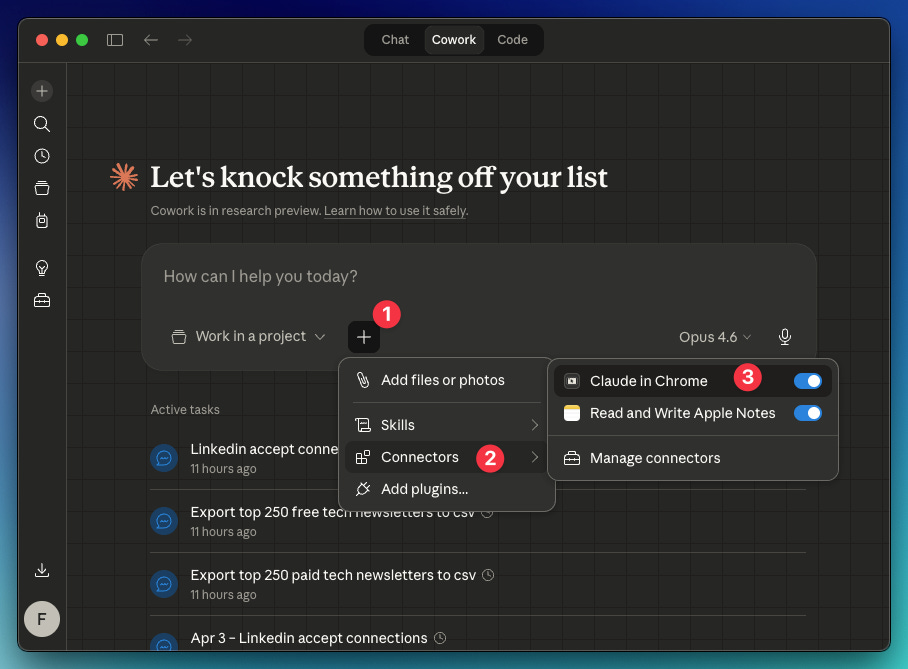
By the way, you will need the Claude in Chrome connector enabled in Cowork: Click “+” → Connectors → Toggle on “Claude in Chrome.” Also, you need the Claude extension active in Chrome (go here and install it).
Here’s the prompt I created from steps 1, 2, and 3:
Use Claude in Chrome for this task.
Start from: https://artificialcorner.com/notes
Author name: Frank Andrade
Month: February 2026Extract this data from the site keeping in mind the author and month I wrote before: Date, Text of Post, Number of Likes (Hearts), Number of Comments, Number of Restacks, Link of Post
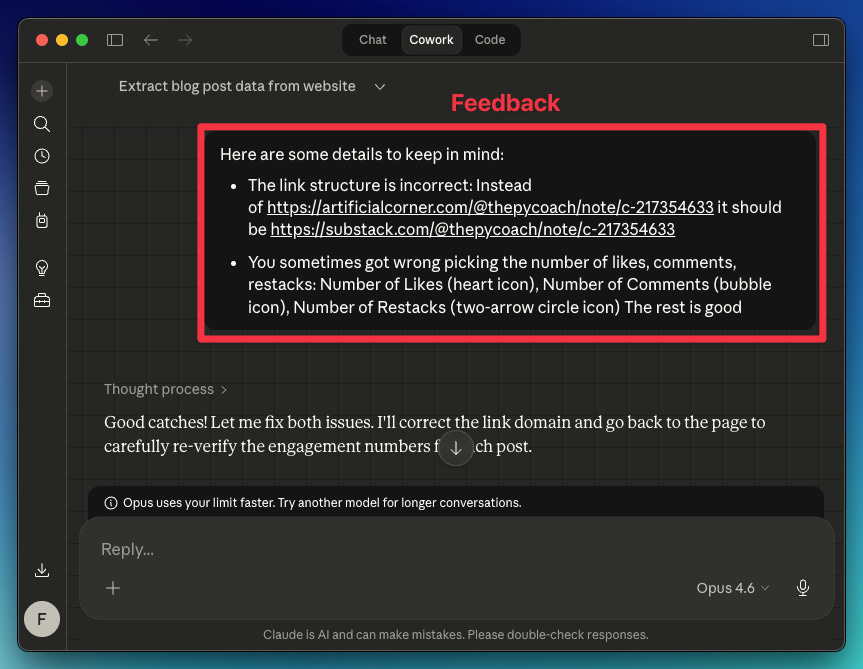
Your first test probably won’t be perfect. Review the data Claude collected, and if something looks off, tell it what to adjust for the next run. In my case, the extracted links and a few other data points were wrong.
Here’s the feedback I gave Claude
Claude understood everything and returned the right data.
How to automate your web scraper in Cowork
Once Claude learns the best way to scrape the site, there are two ways to automate this process (so you don’t repeat the prompt and feedback again):
-
Turn the chat into a skill: Save your chat as a reusable skill that you can run anytime. In this case, the skill will help me scrape data from any Substack writer’s URL (not only mine)
-
Schedule the task: Automate the task for a specific writer on a recurring schedule (e.g., scrape “Frank Andrade“ notes every month on the 14th).
To easily turn a chat into a skill, do this: In the chat, click the dropdown arrow and select “Turn into skill.“ Claude will do the rest.
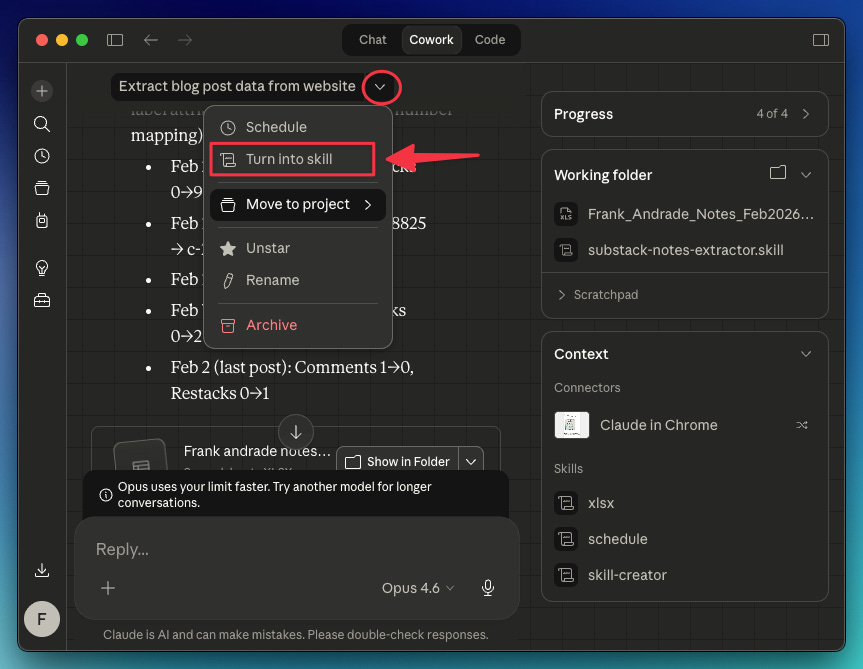
For this particular case, I used a prompt to guide Claude on how to turn my chat into a skill:
Turn this task into a skill. Keep in mind the fixes we made and that the inputs needed for this skill to work are:
Start from: [link]
Author name: [name]
Period: [month/dates]
Thanks to this, Claude can now scrape not only my notes, but the notes of any Substack writer. I just need to provide their link.
As for scheduling tasks, you can click the dropdown arrow and select “Schedule,” or use the /schedule command. The /schedule command gives you more flexibility — the dropdown only offers daily, weekly, or weekday options, while /schedule lets you set any custom recurring schedule.
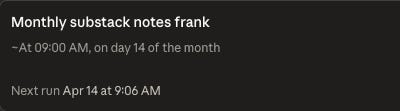
In my case, I opened a new chat and used /schedule to have Claude automatically scrape my notes for the previous month on the 14th of each month.
/schedule run this task monthly on the 14th
Start from: http://artificialcorner.com/notes
Author name: Frank Andrade
Period: Previous month
2. Web scraping with Cowork + Apify connector
When you feel Cowork isn’t enough to scrape a site, use the Apify connector to supercharge your web scraping.
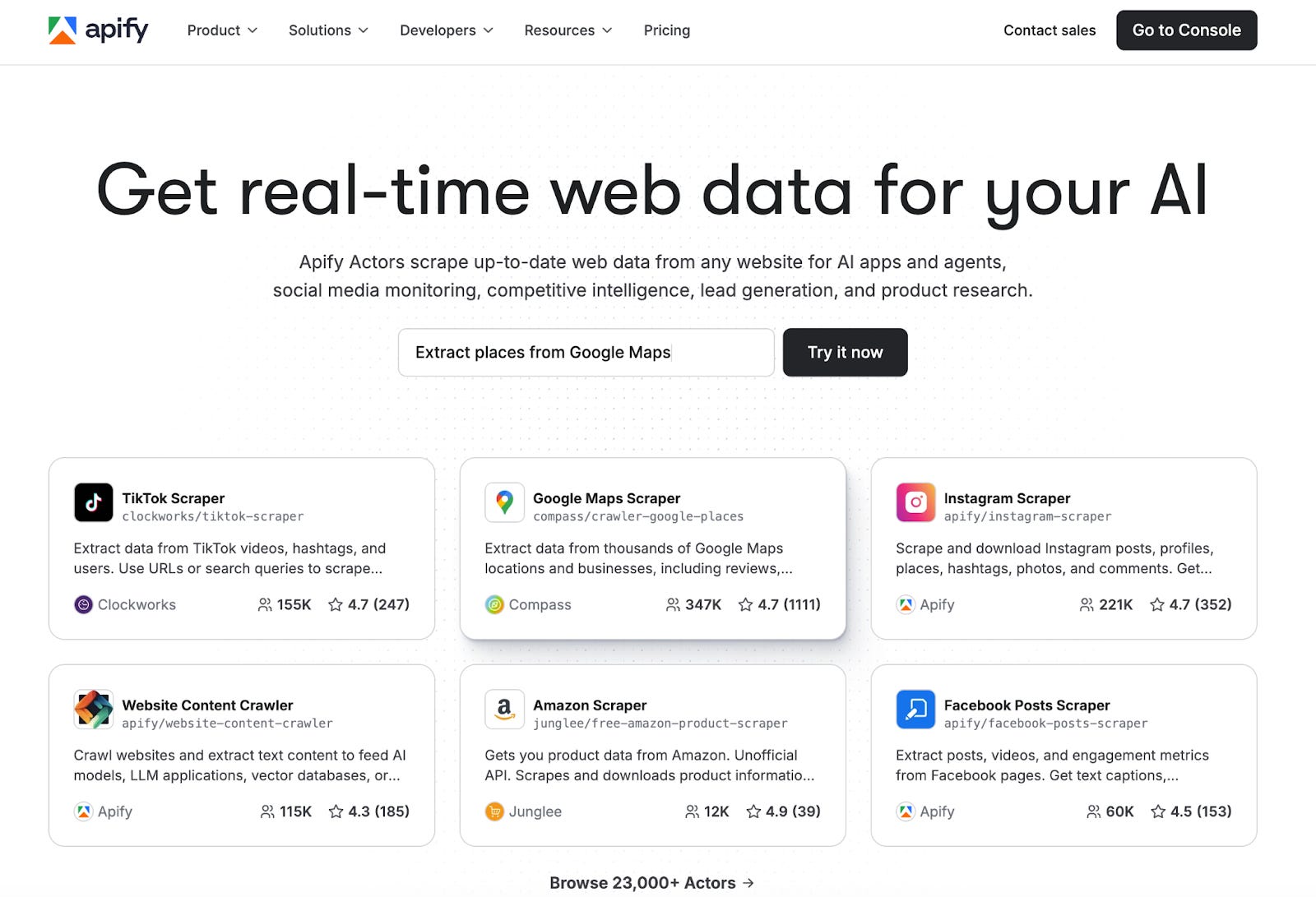
Apify is a web scraping and automation platform with over 23,000 ready-made actors. Each actor is a pre-built scraper for a specific website or data source. Reddit, Google Maps, Meta Ad Library, LinkedIn, Amazon, they are all there, ready to run with no code.
Apify is great for robust, scalable scraping across complex sites. With the Apify connector, Cowork can tap into thousands of specialized scrapers with built-in proxy rotation and anti-bot handling that Cowork alone can’t do.
You just pick the actor, set your inputs, and get structured data back in minutes.
Apify Use Cases
This section was written by who writes LearnAIWithMe. It covers how to connect Apify with Cowork and 3 use cases I found very useful:
-
Use Case 1: Reddit Trend Tracker
-
Use Case 2: Google Maps Business Scraper
-
Use Case 3: Meta Ad Library Spy